Unassigned Logs
- Purpose: Match tracker data from unrecognized computers to the correct employee.
- Navigation: Login → Unassigned Logs (URL:
/app/main/unassigned-logs). - How it Works: Click anywhere on a row, or click the Assign button on the right side of the row, to open the assignment window. Pick the employee, confirm the warning if one appears, and click Save.
- Impact: Once linked, all time and screenshots from that computer will show up correctly under the employee's reports and timeline.
What are Unassigned Logs?
Unassigned Logs are activity logs that come in from a computer running the silent-mode Vineforce Teams Lite app, where that computer hasn't been linked to any employee profile yet in Vineforce Teams.
When Vineforce Teams Lite is installed and running, it automatically starts recording things like hours worked, active windows, and screenshots. If that computer isn't linked to an employee account, the system puts all of this activity into the Unassigned Logs list instead of showing it under a person's name.
This screen lets you fix that — by matching each computer to the right employee. Once matched, that computer's activity will correctly show up under the employee's reports, timeline, and dashboard.
How to Get to the Unassigned Logs Screen
Go to: Login → Unassigned Logs
- Web Address:
/app/main/unassigned-logs - Access Needed: You must have the
Unassigned Logspermission to view this page.
Screen Overview
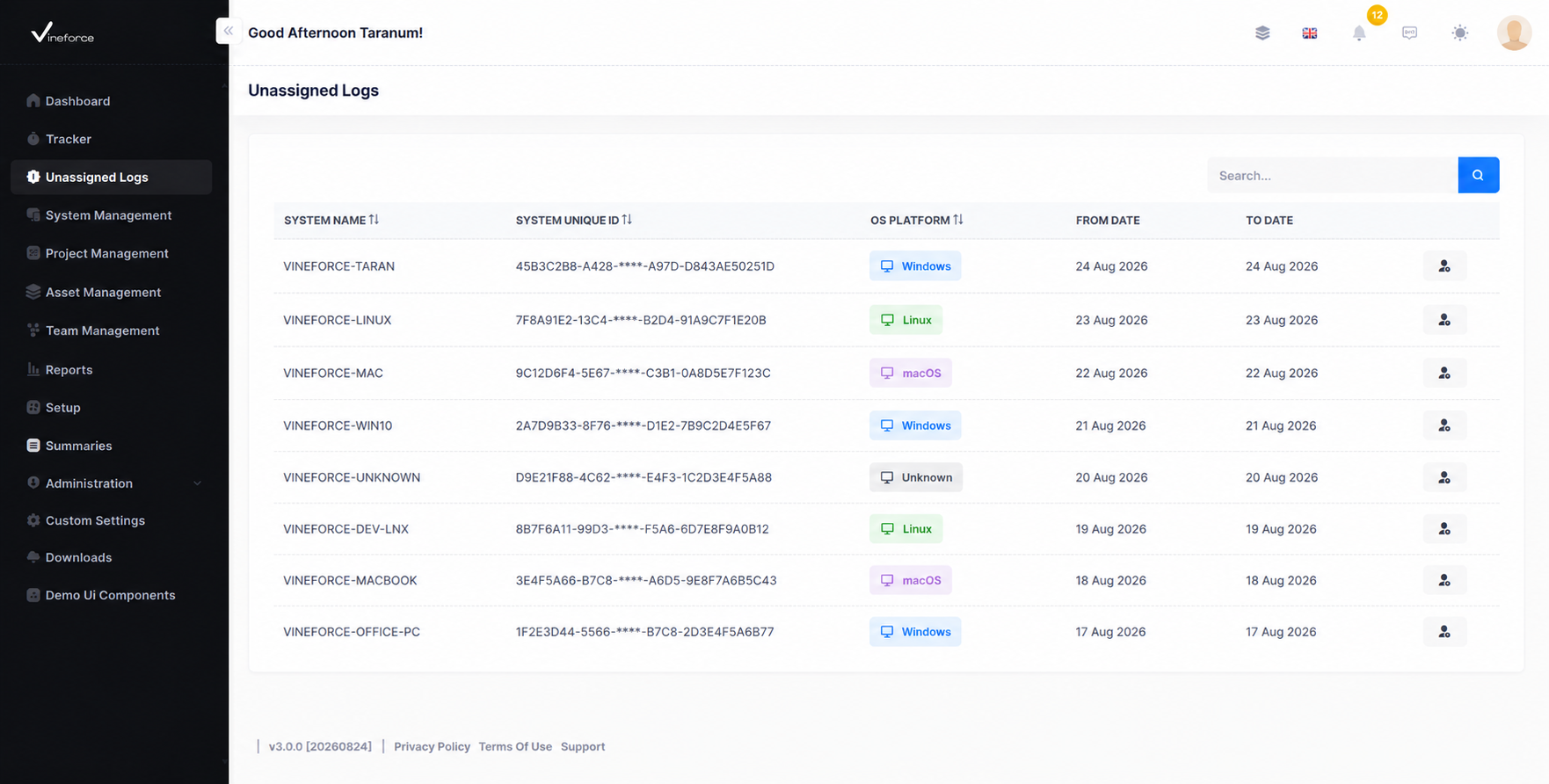
This screen shows a list of computers that have sent in activity but haven't been linked to an employee yet. Each row is one computer.
What Each Column Means
| Column | Description | Sortable |
|---|---|---|
| System Name | The computer's name (e.g., DESKTOP-5M4LK91). | Yes |
| System Unique ID | A unique code for that computer, useful if two computers have similar names. | Yes |
| OS Platform | The type of computer — Windows, Linux, or macOS — shown with a small icon. | Yes |
| From Date | The earliest date this computer sent in activity. | No |
| To Date | The most recent date this computer sent in activity. | No |
Computer Type Icons
Each computer's type is shown with a colored badge so you can spot it quickly:
- Windows — light blue badge
- Linux — light green badge
- macOS — light blue badge
- Unknown/Other — dark badge
Searching and Sorting
You can search this screen to quickly find a specific computer.
The list loads automatically as you scroll. You can also click on the System Name, System Unique ID, or OS Platform column headings to sort the list.
Assigning a Computer to an Employee
How to Start
- Click: anywhere on the row for the computer you want to assign.
- What happens: A window opens where you can pick the employee this computer belongs to.
The Assignment Window
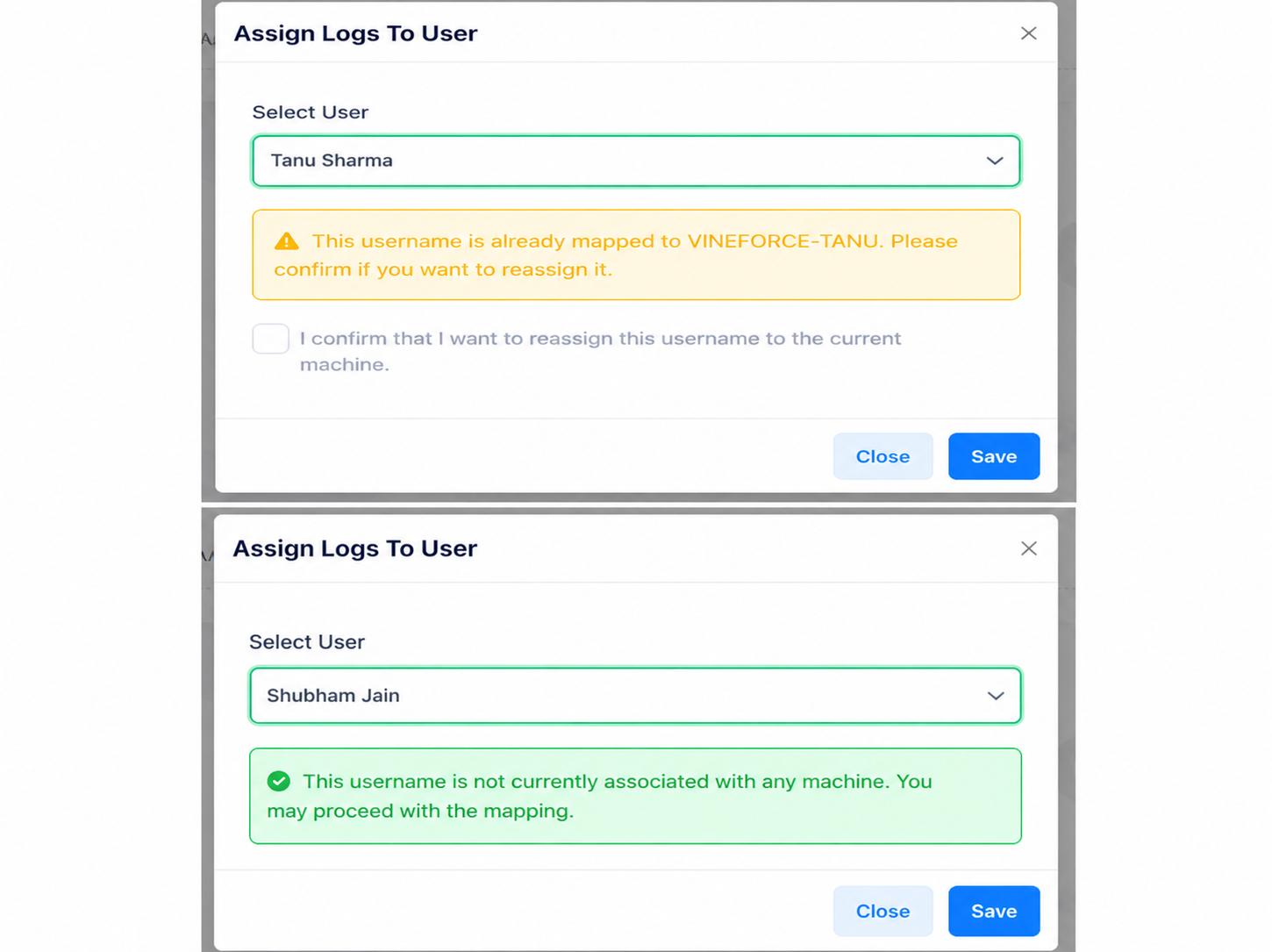
This window lets you pick an employee and checks whether they're already linked to another computer.
What You'll See
- Select Employee: A dropdown list of all employees.
- Status Message:
- Employee Not Yet Linked: You'll see a green message:
"This username is not currently associated with any machine. You may proceed with the mapping."
- Employee Already Linked Elsewhere: You'll see a yellow warning:
"This username is already mapped to
[Previous Machine Name]. Please confirm if you want to reassign it."
- Employee Not Yet Linked: You'll see a green message:
- Confirmation Checkbox:
- Only shows up if the employee is already linked to a different computer.
- Label: "I confirm that I want to reassign this username to the current machine."
- You must check this box before you can click Save.
- Save Button: Confirms and saves the match.
- Close Button: Closes the window without saving anything.
Good to Know
- You'll always be asked to confirm: If an employee is already linked to a different computer, the system won't switch it automatically — you have to check the confirmation box first. This avoids accidental mistakes.
- Access: You need the
Unassigned Logspermission to open this screen or see it on your dashboard.
Frequently Asked Questions
Why is my employee's time showing up as unassigned?
This happens when the tracking app is installed on a computer, but that computer hasn't been linked to the employee's account yet. Assigning it here will fix the issue.
Can one employee be linked to more than one computer?
No. An employee can only be linked to one computer at a time. If you link them to a new one, the old link is replaced — but you'll need to confirm this first.
How quickly does data show up after I save?
Right away. Once you save the match, all past and future activity from that computer will immediately show up under the employee's timeline, reports, and dashboard.
Related Pages
- Tracker Settings: Adjust tracking intervals, idle time, and screenshot settings.
- How to Use Vineforce Tracker: A general guide to using the tracker app.
- Install Vineforce Teams Desktop (Windows): How to install the visible desktop tracker app on Windows.
- Install Vineforce Teams Lite (Windows): How to install the background (silent) tracker app on Windows.