User System Information
The User System Information module provides administrators with detailed information about users' devices, including operating system details, hardware configuration, network information, disk usage, installed browsers, and installed applications.
This module helps administrators monitor device health, track hardware inventory, and troubleshoot user system-related issues.
Accessing User System Information
Follow these steps to access User System Information:
Navigate to System Management
Login → System Management
User System Information Dashboard
The dashboard displays all synchronized user devices in a table, with each row showing a summary of that user's system.
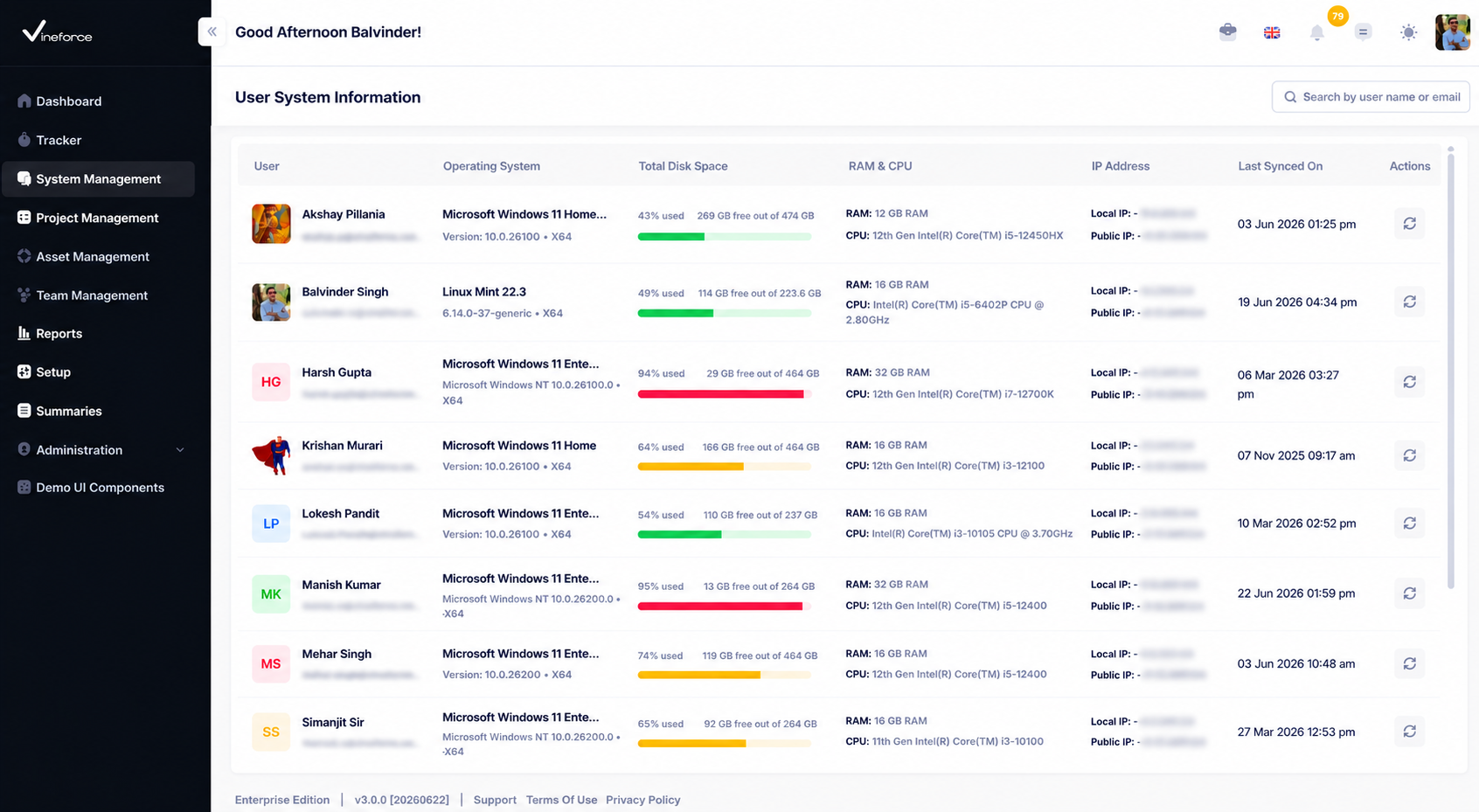
The dashboard displays:
- User details (avatar, name, and email address)
- Operating system name, version, and architecture
- Disk usage statistics
- RAM capacity and processor details
- Local and public IP addresses
- Last synchronization date and time
- Device actions
Dashboard Columns
| Column | Description |
|---|---|
| User | Displays the user's avatar (or initials), name, and email address. |
| Operating System | Displays the operating system name, version, and architecture (e.g. Microsoft Windows 11 Enterprise, version 10.0.26100, X64). |
| Total Disk Space | Displays the percentage of disk used, the amount of free space, and total capacity (e.g. 49% used, 114 GB free out of 223.6 GB), shown with a color-coded progress bar — green for low usage, yellow for moderate usage, and red for high usage. |
| RAM & CPU | Displays total RAM capacity and processor model/clock speed. |
| IP Address | Displays the local IP and public IP address. Public IP may show Error in finding IP if it cannot be determined. |
| Last Synced On | Displays the last synchronization date and time. |
| Actions | Provides a Refresh icon to re-sync the device's information. |
Viewing System Details
Click on a user row to open the [User Name]'s System Information dialog.
The dialog header displays the Last Synced On date and time, a Refresh icon, and a Close (×) icon. Below the header, the dialog contains two tabs:
- System Details
- Installed Applications — displays a badge with the total number of installed applications detected (e.g.
41).
System Details
The System Details tab presents device information as a set of cards.
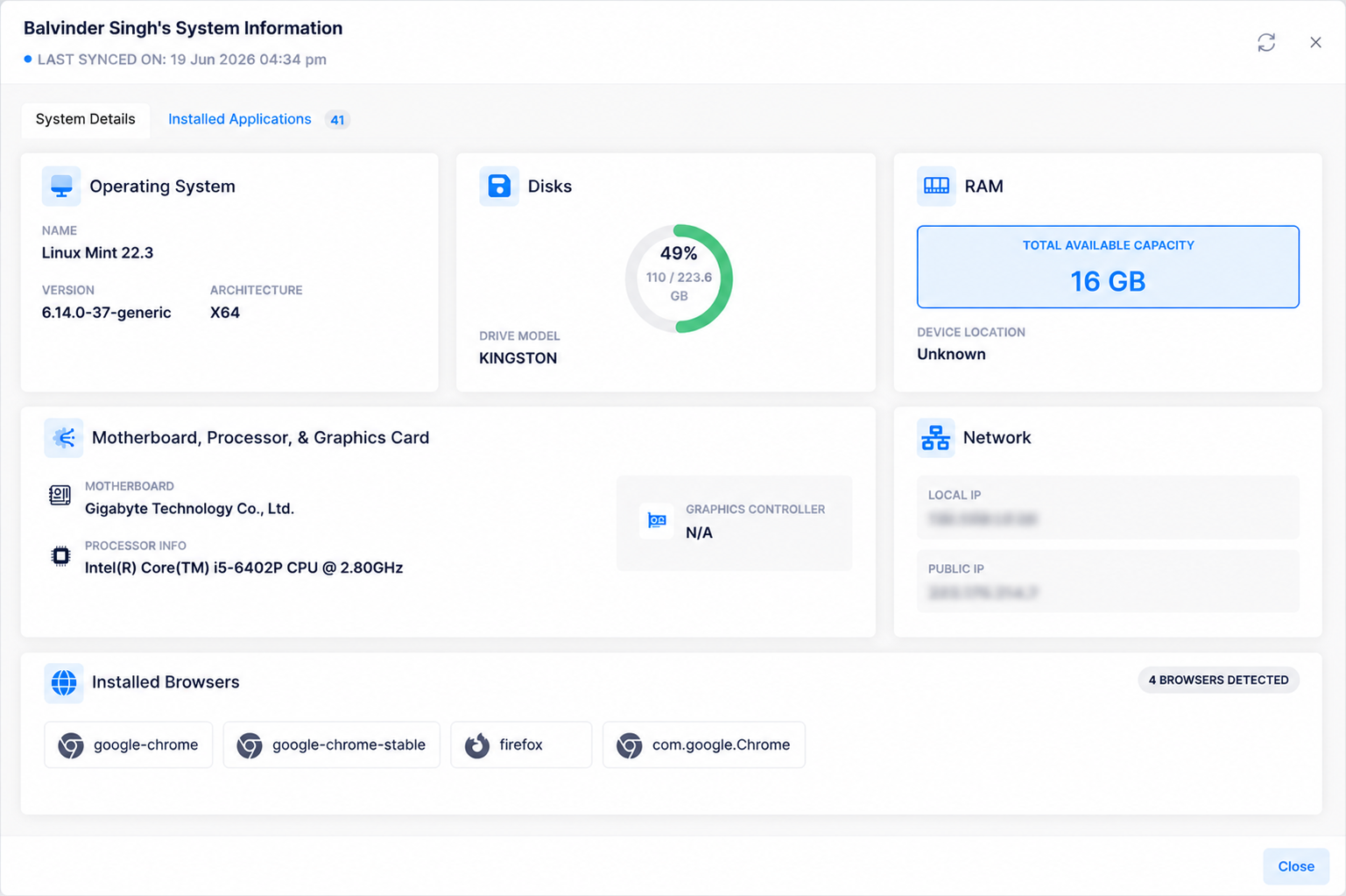
Operating System
Displays:
- Name (e.g.
Linux Mint 22.3) - Version (e.g.
6.14.0-37-generic) - Architecture (e.g.
X64)
Disks
Displays:
- Disk usage percentage, shown as a circular progress indicator (e.g.
49%) - Used and total capacity (e.g.
110 / 223.6 GB) - Drive Model (e.g.
KINGSTON)
This information helps administrators monitor storage availability and identify devices with low disk space.
RAM
Displays:
- Total Available Capacity (e.g.
16 GB) - Device Location (shows
Unknownif not determinable)
Motherboard, Processor, & Graphics Card
Displays:
- Motherboard — manufacturer name (e.g.
Gigabyte Technology Co., Ltd.) - Processor Info — processor name and clock speed (e.g.
Intel(R) Core(TM) i5-6402P CPU @ 2.80GHz) - Graphics Controller — graphics adapter details (shows
N/Aif not detected)
Network
Displays:
- Local IP address
- Public IP address
This information can be useful for:
- Network troubleshooting
- Device identification
- Connectivity analysis
Installed Browsers
Displays all browsers detected on the user's device as individual tags, along with a count badge (e.g. 4 BROWSERS DETECTED).
Examples:
- google-chrome
- google-chrome-stable
- firefox
- com.google.Chrome
Installed Applications
The Installed Applications tab displays all applications installed on the selected device, along with a description noting that the list reflects the latest synchronization.
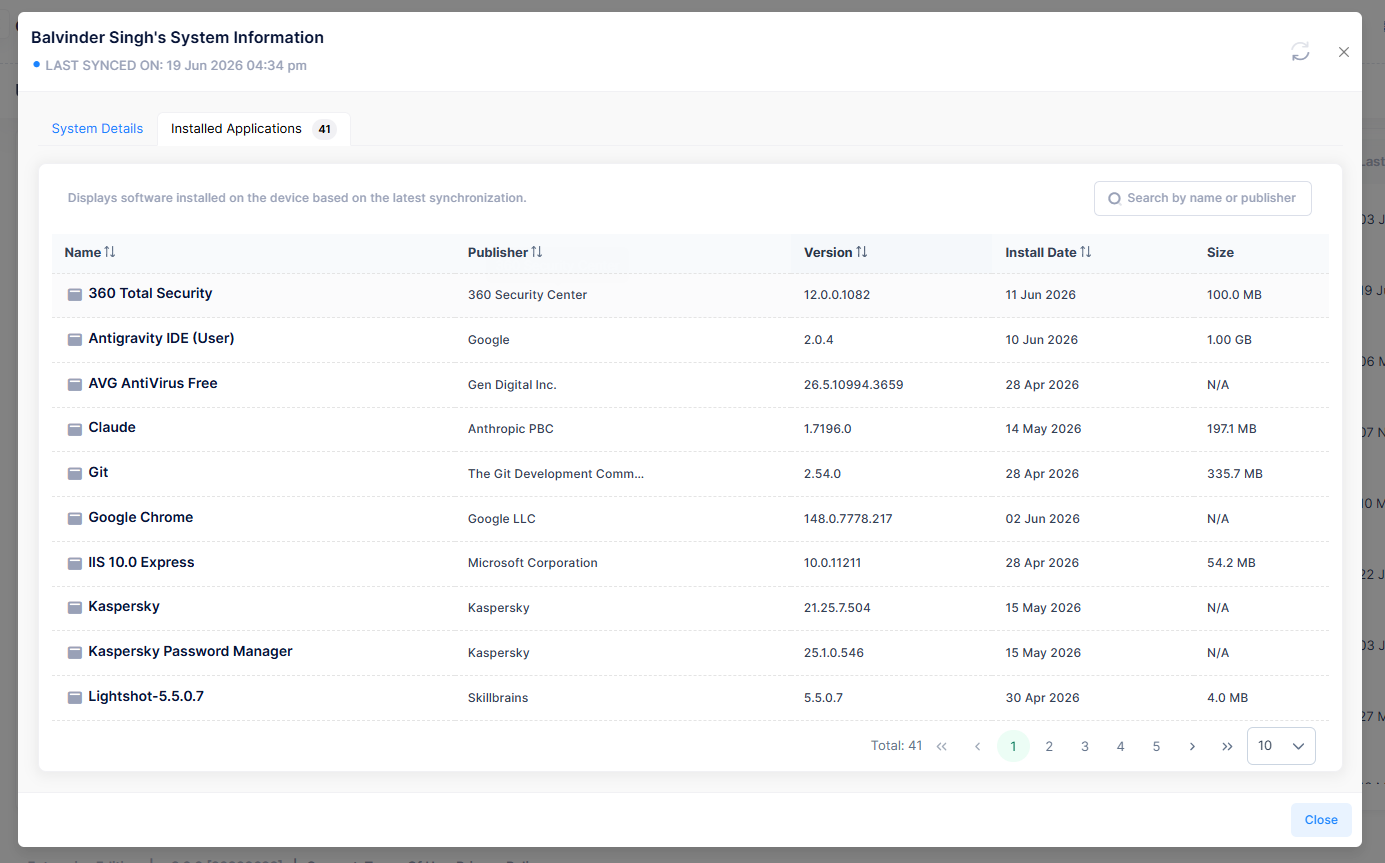
Application Information
| Column | Description |
|---|---|
| Name | Application name (e.g. 360 Total Security, Google Chrome). Sortable. |
| Publisher | Application publisher (e.g. Google LLC, Microsoft Corporation). Sortable. |
| Version | Installed version number. Sortable. |
| Install Date | Date the application was installed. Sortable. |
| Size | Application size (shows N/A if not determinable). |
Refreshing System Information
Click the Refresh icon — available both on the dashboard row and inside the System Information dialog — to synchronize and fetch the latest device information from the user's system.
The synchronization updates:
- System details
- Hardware information
- Installed browsers
- Installed applications
- Network information
Benefits of User System Information
The module helps organizations:
- Monitor device health
- Maintain hardware inventory
- Track software installations
- Troubleshoot user issues
- Identify outdated systems
- Monitor storage utilization
- Manage IT assets efficiently
Permissions
Access to User System Information is controlled through user roles and permissions.