Deploy Vineforce Teams on Docker Desktop (Localhost/VM)
This guide explains how to deploy Vineforce Teams locally on your machine or on a VM using Docker Desktop.
The Vineforce Teams Docker image is publicly available on Docker Hub. You can run it directly on Docker Desktop without any container registry setup.
Prerequisite: Before starting, ensure you have completed the Database Setup using the migrator image, and have your database connection string ready.
Prerequisites
Before you begin, make sure you have:
- Docker Desktop installed on Windows, macOS, or Linux
- A database and valid database connection string (from Database Setup)
- An Azure Storage account and storage connection string for screenshots and logs
- A public application URL/domain for Vineforce Teams (or
localhostfor local development) - Valid reCAPTCHA keys if reCAPTCHA is enabled in your environment
Step 1: Install Docker Desktop
Windows
- Download Docker Desktop from docker.com/products/docker-desktop
- Run the installer and follow the setup wizard
- When prompted, enable WSL 2 integration (recommended for Windows)
- Restart your computer if required
- Launch Docker Desktop and complete the initial setup
macOS
- Download the appropriate installer for your architecture (Apple Silicon or Intel)
- Open the
.dmgfile and drag Docker to Applications - Launch Docker Desktop from Applications
- Complete the initial setup
Linux
Follow the official Docker Desktop for Linux installation guide.
Note: On Linux, you may also use Docker Engine directly without Docker Desktop. The container commands in this guide work identically.
Step 2: Configure Database Connection
The Vineforce Teams container requires access to a SQL Server database. Depending on where your database is running, configure the connection string accordingly.
Option A: SQL Server on Host Machine (localhost)
If SQL Server is running on the same machine as Docker Desktop, use host.docker.internal to connect from the container to the host:
Server=host.docker.internal,1433;Database=VineforceTeams;User Id=sa;Password=YourStrongPassword123!;TrustServerCertificate=true;
Option B: SQL Server in Another Container
If running SQL Server in a separate container on the same Docker network:
Server=sql-server-container-name,1433;Database=VineforceTeams;User Id=sa;Password=YourStrongPassword123!;TrustServerCertificate=true;
Option C: Remote SQL Server (Azure SQL, VM, etc.)
Use the standard connection string for your SQL Server instance:
Server=your-sql-server.database.windows.net,1433;Database=VineforceTeams;User Id=your-user;Password=your-password;TrustServerCertificate=false;Encrypt=true;
Important: Ensure the SQL Server allows connections from the Docker host IP. For Azure SQL, configure firewall rules to allow your IP.
Step 3: Pull the Vineforce Teams Docker Image
Open a terminal (PowerShell, Command Prompt, or Bash) and pull the latest image from vineforce/vineforce-teams:main
docker pull vineforce/vineforce-teams:main
This downloads the public image from Docker Hub to your local Docker installation.
Step 4: Prepare Environment Variables
Create a file to store your environment variables for easy management. You can use a .env file or pass them directly in the command.
Required Environment Variables
| Variable | Description | Example |
|---|---|---|
ASPNETCORE_ENVIRONMENT | Application environment | Production |
ASPNETCORE_URLS | URLs the app listens on | http://+:8080 |
WEBSITES_PORT | Port for the container | 8080 |
App__ClientRootAddress | Client application URL | http://localhost:8080/ |
App__CorsOrigins | Allowed CORS origins | http://localhost:8080/ |
App__ServerRootAddress | Server API URL | http://localhost:8080/ |
App__MultiTenancyEnabled | Enable multi-tenancy | true |
appBaseUrl | Base URL for the application | http://localhost:8080 |
remoteServiceBaseUrl | Remote service base URL | http://localhost:8080 |
ConnectionStrings__Default | Database connection string | See Step 2 |
Azure__Storage__ConnectionString | Azure Storage connection string | DefaultEndpointsProtocol=https;AccountName=...;AccountKey=...;EndpointSuffix=core.windows.net |
Recaptcha__SiteKey | reCAPTCHA site key (optional) | your-site-key |
Recaptcha__SecretKey | reCAPTCHA secret key (optional) | your-secret-key |
Configuration__AzureKeyVault__IsEnabled | Enable Azure Key Vault | false |
Step 5: Run the Container
Option A: Using docker run (Quick Start)
Run the container with all required environment variables. Replace the example values with your actual configuration.
PowerShell (Windows)
docker run -d `
  --name vineforce-teams `
  -p 8080:8080 `
  -e ASPNETCORE_ENVIRONMENT=Production `
  -e ASPNETCORE_URLS=http://+:8080 `
  -e WEBSITES_PORT=8080 `
  -e App__ClientRootAddress=http://localhost:8080/ `
  -e App__CorsOrigins=http://localhost:8080/ `
  -e App__ServerRootAddress=http://localhost:8080/ `
  -e App__MultiTenancyEnabled=true `
  -e appBaseUrl=http://localhost:8080 `
  -e remoteServiceBaseUrl=http://localhost:8080 `
  -e ConnectionStrings__Default="Server=host.docker.internal,1433;Database=VineforceTeams;User Id=sa;Password=YourStrongPassword123!;TrustServerCertificate=true;" `
  -e Azure__Storage__ConnectionString="DefaultEndpointsProtocol=https;AccountName=yourstorage;AccountKey=yourkey;EndpointSuffix=core.windows.net" `
  -e Recaptcha__SiteKey="your-recaptcha-site-key" `
  -e Recaptcha__SecretKey="your-recaptcha-secret-key" `
  -e Configuration__AzureKeyVault__IsEnabled=false `
  vineforce/vineforce-teams:main
Bash (macOS/Linux/Git Bash)
docker run -d \
  --name vineforce-teams \
  -p 8080:8080 \
  -e ASPNETCORE_ENVIRONMENT=Production \
  -e ASPNETCORE_URLS=http://+:8080 \
  -e WEBSITES_PORT=8080 \
  -e App__ClientRootAddress=http://localhost:8080/ \
  -e App__CorsOrigins=http://localhost:8080/ \
  -e App__ServerRootAddress=http://localhost:8080/ \
  -e App__MultiTenancyEnabled=true \
  -e appBaseUrl=http://localhost:8080 \
  -e remoteServiceBaseUrl=http://localhost:8080 \
  -e ConnectionStrings__Default="Server=host.docker.internal,1433;Database=VineforceTeams;User Id=sa;Password=YourStrongPassword123!;TrustServerCertificate=true;" \
  -e Azure__Storage__ConnectionString="DefaultEndpointsProtocol=https;AccountName=yourstorage;AccountKey=yourkey;EndpointSuffix=core.windows.net" \
  -e Recaptcha__SiteKey="your-recaptcha-site-key" \
  -e Recaptcha__SecretKey="your-recaptcha-secret-key" \
  -e Configuration__AzureKeyVault__IsEnabled=false \
  vineforce/vineforce-teams:main
Option B: Using Docker Compose (Recommended for Persistence)
Create a docker-compose.yml file:
version: "3.8"

services:
  vineforce-teams:
    image: vineforce/vineforce-teams:main
    container_name: vineforce-teams
    ports:
      - "8080:8080"
    environment:
      ASPNETCORE_ENVIRONMENT: Production
      ASPNETCORE_URLS: http://+:8080
      WEBSITES_PORT: "8080"
      App__ClientRootAddress: http://localhost:8080/
      App__CorsOrigins: http://localhost:8080/
      App__ServerRootAddress: http://localhost:8080/
      App__MultiTenancyEnabled: "true"
      appBaseUrl: http://localhost:8080
      remoteServiceBaseUrl: http://localhost:8080
      ConnectionStrings__Default: "Server=host.docker.internal,1433;Database=VineforceTeams;User Id=sa;Password=YourStrongPassword123!;TrustServerCertificate=true;"
      Azure__Storage__ConnectionString: "DefaultEndpointsProtocol=https;AccountName=yourstorage;AccountKey=yourkey;EndpointSuffix=core.windows.net"
      Recaptcha__SiteKey: "your-recaptcha-site-key"
      Recaptcha__SecretKey: "your-recaptcha-secret-key"
      Configuration__AzureKeyVault__IsEnabled: "false"
    restart: unless-stopped
    # Optional: Mount a volume for persistent logs
    # volumes:
    #   - ./logs:/app/logs
Then run:
docker-compose up -d
To stop:
docker-compose down
Option C: Using an .env File (Cleaner Configuration)
Create a .env file in the same directory as your docker-compose.yml:
# Application
ASPNETCORE_ENVIRONMENT=Production
ASPNETCORE_URLS=http://+:8080
WEBSITES_PORT=8080

# URLs (update for your domain in production)
APP_URL=http://localhost:8080
App__ClientRootAddress=http://localhost:8080/
App__CorsOrigins=http://localhost:8080/
App__ServerRootAddress=http://localhost:8080/
App__MultiTenancyEnabled=true
appBaseUrl=http://localhost:8080
remoteServiceBaseUrl=http://localhost:8080

# Database (from Database Setup)
ConnectionStrings__Default=Server=host.docker.internal,1433;Database=VineforceTeams;User Id=sa;Password=YourStrongPassword123!;TrustServerCertificate=true;

# Azure Storage
Azure__Storage__ConnectionString=DefaultEndpointsProtocol=https;AccountName=yourstorage;AccountKey=yourkey;EndpointSuffix=core.windows.net

# reCAPTCHA (optional)
Recaptcha__SiteKey=your-recaptcha-site-key
Recaptcha__SecretKey=your-recaptcha-secret-key

# Key Vault
Configuration__AzureKeyVault__IsEnabled=false
Update docker-compose.yml to use the .env file:
version: "3.8"

services:
  vineforce-teams:
    image: vineforce/vineforce-teams:main
    container_name: vineforce-teams
    ports:
      - "8080:8080"
    env_file:
      - .env
    restart: unless-stopped
Step 6: Verify the Container is Running
Check the container status:
docker ps
You should see vineforce-teams running with port 8080 mapped.
Check the logs to verify successful startup:
docker logs vineforce-teams -f
Look for messages indicating the application has started and is listening on port 8080.
Step 7: Access the Application
Open your browser and navigate to:
http://localhost:8080
You should see the Vineforce Teams login page.
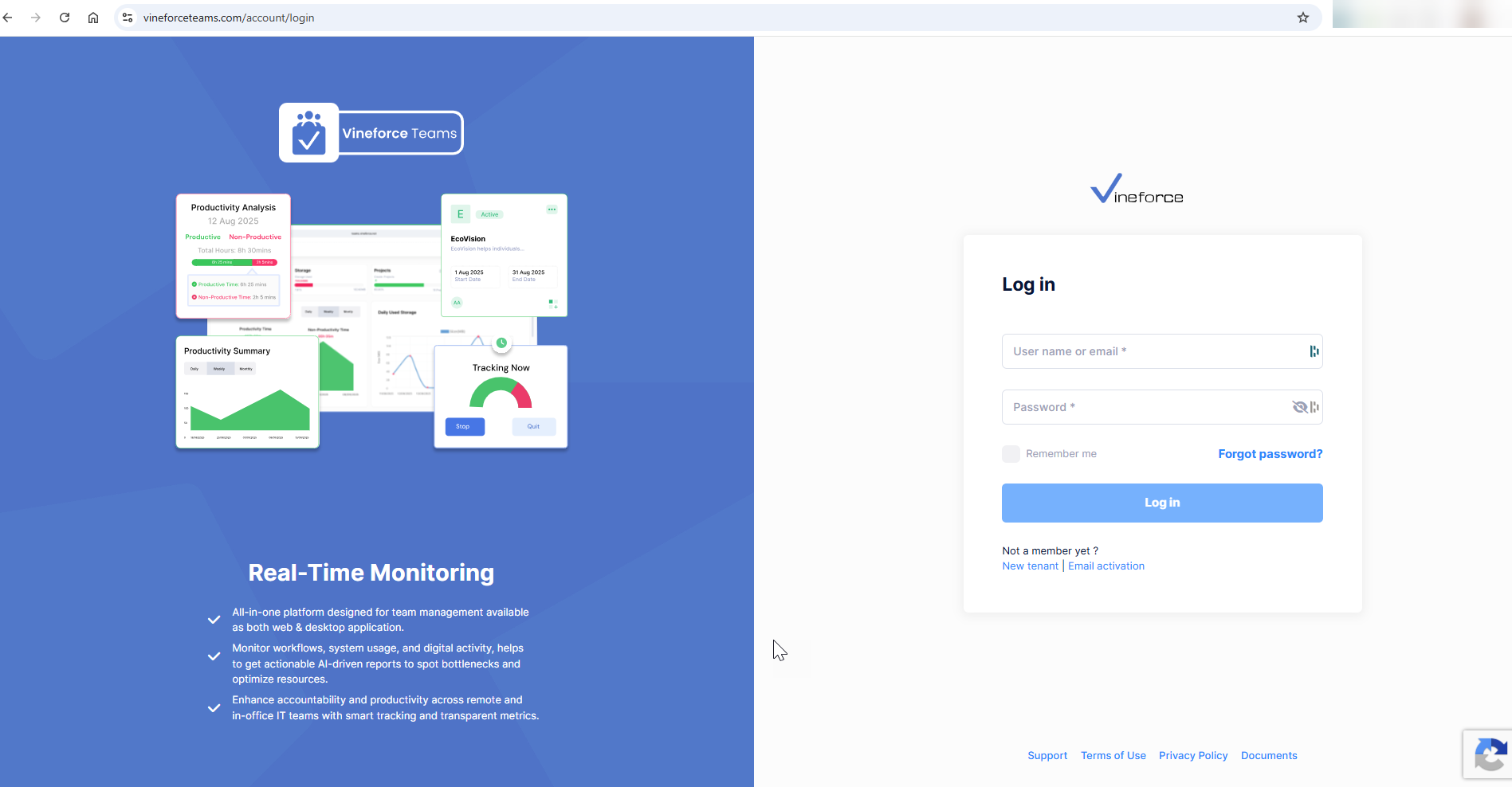
Verify the Deployment
Confirm the following:
- The login page loads successfully
- Static resources (CSS, JS, images) load correctly
- No CORS errors in browser console
- Database-dependent functionality works (try logging in after initial setup)
- Storage functionality works (if configured)
Configuration for Production Domain
When deploying to a VM with a public domain, update the URL environment variables:
| Variable | Localhost Value | Production Value |
|---|---|---|
App__ClientRootAddress | http://localhost:8080/ | https://yourdomain.com/ |
App__CorsOrigins | http://localhost:8080/ | https://yourdomain.com/ |
App__ServerRootAddress | http://localhost:8080/ | https://yourdomain.com/ |
App__MultiTenancyEnabled | true | true |
appBaseUrl | http://localhost:8080 | https://yourdomain.com |
remoteServiceBaseUrl | http://localhost:8080 | https://yourdomain.com |
Important: Use HTTPS for production deployments. Configure a reverse proxy (nginx, Traefik, Caddy) or use Docker Desktop's built-in HTTPS support for local HTTPS development.
Troubleshooting
Container Exits Immediately
Check the logs for errors:
docker logs vineforce-teams
Common causes:
- Invalid database connection string
- Missing required environment variables
- Port 8080 already in use
Cannot Connect to Database
Error: Cannot connect to SQL Server or Login failed for user
Solutions:
- Verify the connection string is correct
- For local SQL Server, ensure
host.docker.internalresolves correctly - Check SQL Server allows TCP connections on port 1433
- Verify firewall rules allow Docker host IP
- For Azure SQL, add your IP to firewall rules
Port 8080 Already in Use
Error: Bind for 0.0.0.0:8080 failed: port is already allocated
Solutions:
- Stop the existing process using port 8080
- Or map to a different host port:
-p 8081:8080(then access athttp://localhost:8081)
CORS Errors
Error: Access to fetch at '...' from origin '...' has been blocked by CORS policy
Solution: Ensure App__CorsOrigins matches the exact URL you use to access the application, including protocol and trailing slash.
Application Not Accessible
- Verify container is running:
docker ps - Check port mapping:
docker port vineforce-teams - Test from inside container:
docker exec vineforce-teams curl http://localhost:8080 - Check Windows/macOS firewall allows Docker Desktop
Useful Docker Commands
| Command | Description |
|---|---|
docker ps | List running containers |
docker logs vineforce-teams -f | Follow container logs |
docker stop vineforce-teams | Stop the container |
docker start vineforce-teams | Start the container |
docker restart vineforce-teams | Restart the container |
docker rm vineforce-teams | Remove the container |
docker exec -it vineforce-teams sh | Open shell in container |
docker-compose up -d | Start with docker-compose |
docker-compose down | Stop and remove with docker-compose |
docker-compose logs -f | Follow docker-compose logs |
docker pull vineforce/vineforce-teams:main | Update to latest image |
Updating the Application
To update to the latest version:
# Pull latest image
docker pull vineforce/vineforce-teams:main

# Stop and remove old container
docker stop vineforce-teams
docker rm vineforce-teams

# Run new container (use your original docker run command or docker-compose)
docker-compose up -d
Complete Deployment Checklist
- Docker Desktop installed and running
- Database migration completed (Database Setup)
- Database connection string prepared and tested
- Azure Storage account created and connection string ready
- reCAPTCHA keys obtained (if required)
- Environment variables configured
- Container started successfully
- Application accessible at
http://localhost:8080 - Login page loads without errors
- Initial admin user configured
- Sensitive values (passwords, keys) stored securely
Summary
Vineforce Teams can be deployed on Docker Desktop for local development, testing, or VM-based deployments using the public Docker image from Docker Hub.
Key configuration:
Image: vineforce/vineforce-teams:main
Container Port: 8080
Host Port: 8080 (configurable)
The critical environment variables are the database connection string, Azure Storage connection string, and the application URL settings. For localhost development, use http://localhost:8080/ for all URL variables. For production VM deployments, update to your public domain with HTTPS.
Production recommendation: Keep all passwords, connection strings, API keys, and secret values secure. Do not commit them to source control or publish them in documentation. Use
.envfiles (gitignored) or secure secret management solutions.
Other Deployment Options
This guide covers Docker Desktop deployment. For other deployment scenarios, see: