Deploy Vineforce Teams on Azure App Service (Linux Container)
This guide explains how to deploy Vineforce Teams on Microsoft Azure App Service using a Linux-based Docker container.
The Vineforce Teams Docker image is publicly available on Docker Hub. You can deploy the image directly to Azure App Service without using Azure Container Registry.
Prerequisite: Before starting, ensure you have completed the Database Setup using the migrator image, and have your database connection string ready.
Prerequisites
Before you begin, make sure you have:
- An active Microsoft Azure subscription
- Permission to create and manage Azure App Services and related resources
- An Azure Resource Group
- Azure CLI installed (if using command-line deployment)
- A database and valid database connection string (from Database Setup)
- An Azure Storage account and storage connection string for screenshots and logs
- A public application URL/domain for Vineforce Teams
- Valid reCAPTCHA keys if reCAPTCHA is enabled in your environment
Step 1: Create an Azure App Service
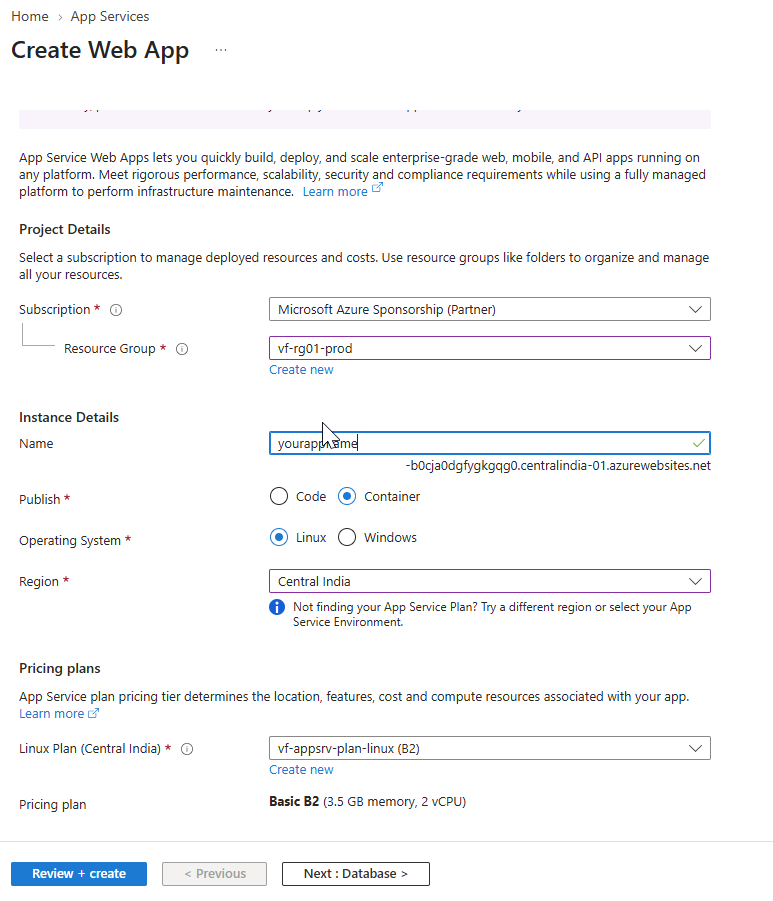
Sign in to the Azure Portal and create a new Web App.
When configuring the Web App, use the following general settings:
| Setting | Value |
|---|---|
| Publish | Container |
| Operating System | Linux |
| Region | Select the Azure region appropriate for your environment |
| App Service Plan | Select or create an appropriate plan |
| Web App Name | Use a unique name for your application |
After configuring the required options, review the settings and create the Web App.
Step 2: Configure the Vineforce Teams Docker Container
After the Azure App Service has been created, open the Web App in the Azure Portal.
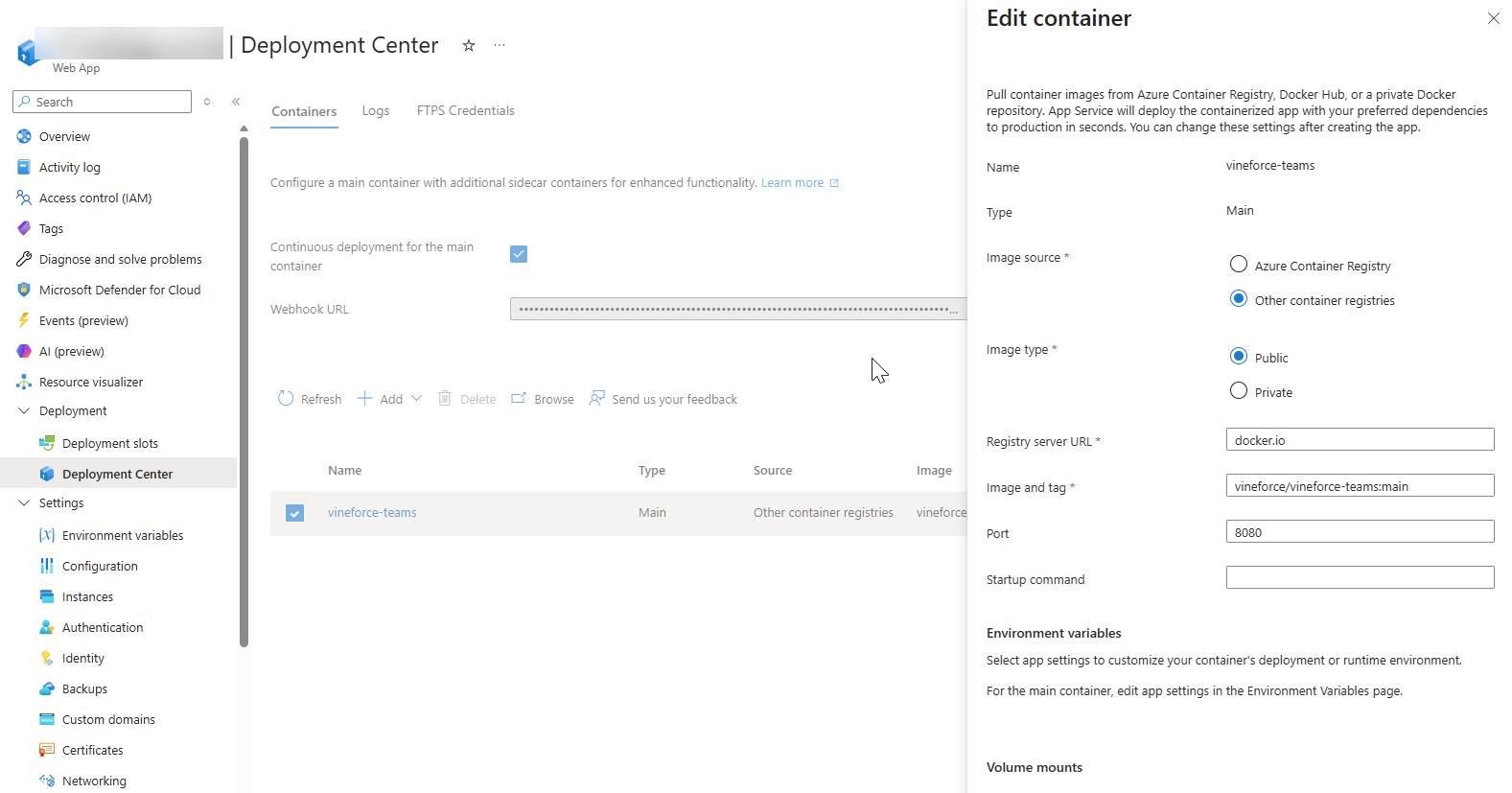
Navigate to the container configuration section and configure the application to use an image from a public container registry.
Container Image Configuration
Select the option for an Other Container Registry rather than Azure Container Registry.
Use Docker Hub as the image source.
| Setting | Value |
|---|---|
| Image Source | Other Container Registry |
| Registry Server URL | https://docker.io |
| Image and Tag | vineforce/vineforce-teams:main |
| Container Port | 8080 |
The main tag represents the Vineforce Teams image that should be deployed for this configuration.
Azure App Service will pull the public Docker image from Docker Hub and start the container.
Container Port
Vineforce Teams listens on port 8080 inside the container.
Make sure the App Service configuration and application settings use port 8080.
Step 3: Configure Application Environment Variables
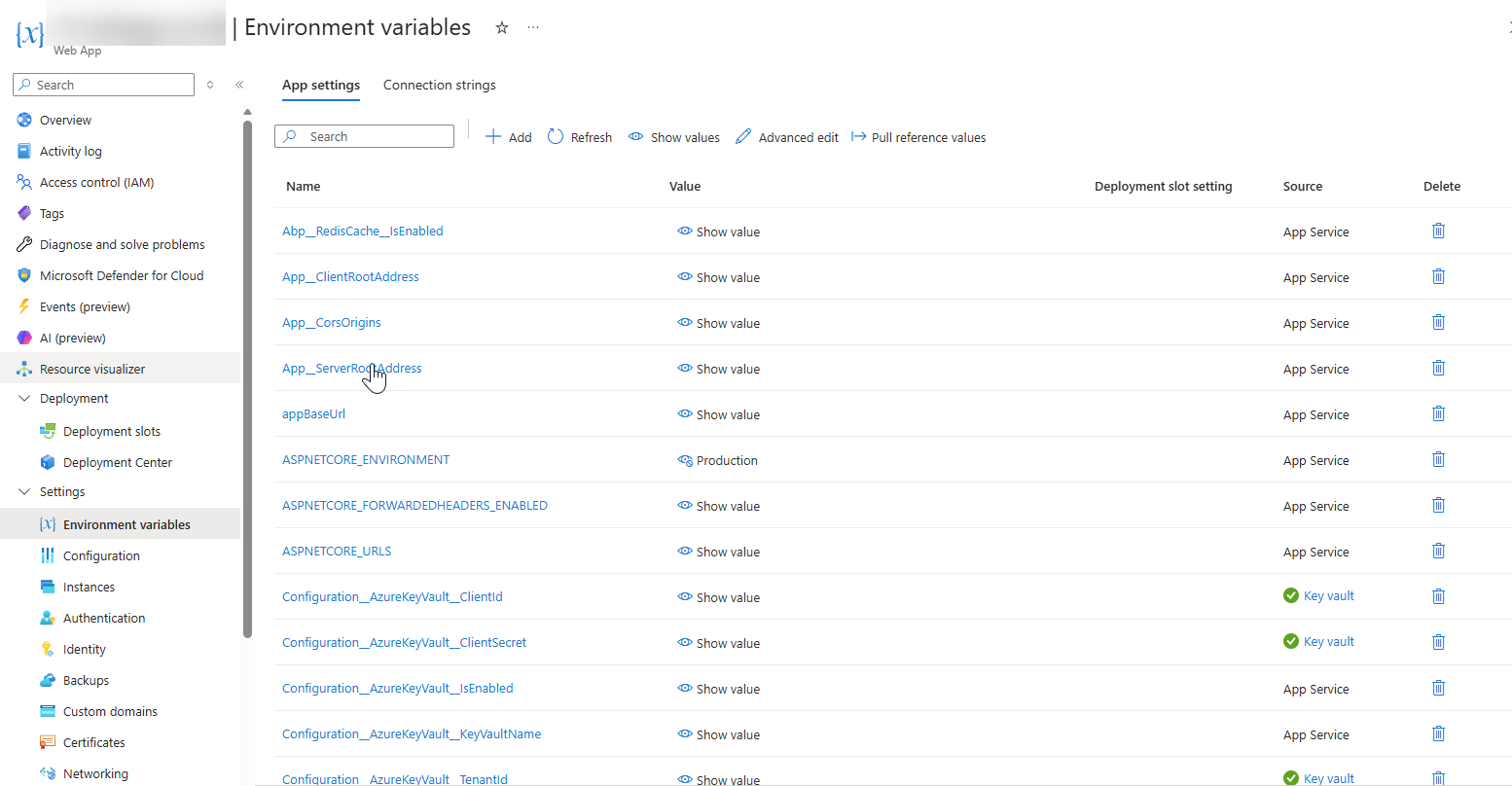
After configuring the Docker container, configure the application settings required by Vineforce Teams.
These settings allow the application to communicate with:
- Your database
- Your Azure Storage account
- Your public application URL
- Your client and server endpoints
- reCAPTCHA
- Other services required by your environment
You can configure the settings manually in the Azure Portal or use the Azure CLI/PowerShell commands below.
Important: Do not copy production credentials, connection strings, secret keys, or private values into public documentation. Replace the example values below with your own values and keep secrets secure.
Update the Environment-Specific Variables
Before running the script, update these values:
| Variable | Example | Description |
|---|---|---|
| Subscription ID | your-subscription-id | Azure subscription where the App Service is deployed |
| Resource Group | vf-rg01-prod | Azure Resource Group containing the App Service |
| App Service Name | vf-webapp-base | Name of your Azure Web App |
| Application URL | https://example.yourdomain.com | Public URL of the Vineforce Teams application |
| reCAPTCHA Site Key | your-site-key | reCAPTCHA site key, if enabled |
| reCAPTCHA Secret Key | your-secret-key | reCAPTCHA secret key, if enabled |
| Database Connection String | your-connection-string | Connection string for the application database (from Database Setup) |
| Azure Storage Connection String | your-storage-connection-string | Connection string for the required Azure Storage account |
Step 4: Sign in to Azure and Select the Subscription
Open PowerShell or a terminal with Azure CLI installed.
Run:
az login
List your available Azure subscriptions:
az account list --output table
Select the subscription where the Vineforce Teams App Service is deployed:
az account set --subscription "your-subscription-id"
Verify the selected subscription:
az account show --output table
Step 5: Set the Azure App Service Name and Resource Group
Set the App Service name and Resource Group variables.
For example:
$appName = "your-app-service-name"
$resourceGroup = "your-resource-group"
Example:
$appName = "vf-webapp-base"
$resourceGroup = "vf-rg01-prod"
Replace these values with the actual names from your Azure environment.
Step 6: Verify the Azure App Service
Use the following command to verify that the Web App exists and is accessible:
az webapp show `
  --name $appName `
  --resource-group $resourceGroup `
  --output table
This command displays information about the selected App Service.
You can also check the existing application settings:
az webapp config appsettings list `
  --name $appName `
  --resource-group $resourceGroup `
  --output table
Security note: Be careful when displaying application settings in terminal output because some settings may contain sensitive information.
Step 7: Configure Vineforce Teams Application Settings
Use the following Azure CLI command to configure the application settings.
Before running it, replace all example values with the values from your own environment.
az webapp config appsettings set `
  --name $appName `
  --resource-group $resourceGroup `
  --settings `
  "ASPNETCORE_ENVIRONMENT=Production" `
  "ASPNETCORE_FORWARDEDHEADERS_ENABLED=true" `
  "ASPNETCORE_URLS=http://+:8080" `
  "DOCKER_ENABLE_CI=true" `
  "WEBSITES_CONTAINER_START_TIME_LIMIT=1800" `
  "WEBSITES_ENABLE_APP_SERVICE_STORAGE=false" `
  "WEBSITES_PORT=8080" `
  "App__ClientRootAddress=https://example.yourdomain.com/" `
  "App__CorsOrigins=https://example.yourdomain.com/" `
  "App__ServerRootAddress=https://example.yourdomain.com/" `
  "App__MultiTenancyEnabled=true" `
  "appBaseUrl=https://example.yourdomain.com" `
  "remoteServiceBaseUrl=https://example.yourdomain.com" `
  "Configuration__AzureKeyVault__IsEnabled=false" `
  "Recaptcha__SecretKey=your-recaptcha-secret-key" `
  "Recaptcha__SiteKey=your-recaptcha-site-key" `
  "ConnectionStrings__Default=your-database-connection-string" `
  "Azure__Storage__ConnectionString=your-storage-connection-string"
Important Configuration Values
ASPNETCORE_ENVIRONMENT
Defines the ASP.NET Core environment. For production:
ASPNETCORE_ENVIRONMENT=Production
ASPNETCORE_URLS
Configures the application to listen on port 8080 inside the container:
ASPNETCORE_URLS=http://+:8080
WEBSITES_PORT
Tells Azure App Service which port the container is listening on:
WEBSITES_PORT=8080
WEBSITES_CONTAINER_START_TIME_LIMIT
Maximum time Azure App Service allows the container to start:
WEBSITES_CONTAINER_START_TIME_LIMIT=1800
WEBSITES_ENABLE_APP_SERVICE_STORAGE
Controls App Service storage mounting for the container:
WEBSITES_ENABLE_APP_SERVICE_STORAGE=false
Application URLs
The following settings should point to the public URL of your Vineforce Teams deployment:
App__ClientRootAddress=https://example.yourdomain.com/
App__CorsOrigins=https://example.yourdomain.com/
App__ServerRootAddress=https://example.yourdomain.com/
appBaseUrl=https://example.yourdomain.com
remoteServiceBaseUrl=https://example.yourdomain.com
Important: Keep the URL format consistent across these settings. Replace
https://example.yourdomain.comwith your actual application URL.
Database Connection
Set the database connection string (from Database Setup):
ConnectionStrings__Default=your-database-connection-string
Azure Storage
Configure the Azure Storage connection string:
Azure__Storage__ConnectionString=your-storage-connection-string
reCAPTCHA
If reCAPTCHA is enabled:
Recaptcha__SiteKey=your-recaptcha-site-key
Recaptcha__SecretKey=your-recaptcha-secret-key
Multi-Tenancy
Enable multi-tenancy support:
App__MultiTenancyEnabled=true
Azure Key Vault
If not using Azure Key Vault:
Configuration__AzureKeyVault__IsEnabled=false
Step 8: Verify the Application Settings
After setting the configuration, run:
az webapp config appsettings list `
  --name $appName `
  --resource-group $resourceGroup `
  --output table
Verify that the required application settings have been added.
Security note: Avoid sharing terminal screenshots that expose database passwords, connection strings, API keys, reCAPTCHA secrets, or other credentials.
Step 9: Restart the App Service
After changing container or application settings, restart the Web App so the new configuration is loaded.
You can restart it from the Azure Portal or run:
az webapp restart `
  --name $appName `
  --resource-group $resourceGroup
Wait for the application to restart and the container to become healthy.
Step 10: Verify the Deployment
Open the public URL configured for your Vineforce Teams application.
For example:
https://example.yourdomain.com
Verify that:
- The application loads successfully
- The login page is accessible
- Static resources load correctly
- The application can communicate with the backend
- Database-dependent functionality works
- Required storage functionality works
- No CORS errors are reported by the browser
- The application does not show container startup errors
Troubleshooting
Container Does Not Start
Verify that the container port is configured as:
8080
Also verify:
ASPNETCORE_URLS=http://+:8080
WEBSITES_PORT=8080
Check the App Service logs for container startup errors.
Application Is Not Accessible
Verify:
- The App Service is running
- The container has started successfully
- Port
8080is configured correctly - The application URL points to the correct hostname
- DNS is correctly configured if using a custom domain
- HTTPS is configured correctly for the production domain
Database Connection Fails
Verify the value of:
ConnectionStrings__Default
Also verify:
- Database server accessibility
- Database credentials
- Firewall/network rules
- Required database permissions
- SSL/TLS requirements for the database connection
CORS Errors
Verify:
App__CorsOrigins=https://example.yourdomain.com/
Make sure the configured origin matches the URL from which the application is being accessed. Avoid adding unnecessary origins to the production CORS configuration.
reCAPTCHA Is Not Working
Verify:
Recaptcha__SiteKey=your-recaptcha-site-key
Recaptcha__SecretKey=your-recaptcha-secret-key
Make sure the reCAPTCHA configuration allows the domain being used by your Vineforce Teams deployment.
Complete Deployment Checklist
Use this checklist before considering the deployment complete.
- Azure subscription selected
- Resource Group created or selected
- Azure App Service created
- Operating System set to Linux
- Container deployment configured
- Docker Hub selected as the external/public container registry
- Image configured as
vineforce/vineforce-teams:main - Container port configured as
8080 - App Service name configured in the script
- Resource Group configured in the script
- Subscription ID selected
- Application URL configured
- Database connection string configured (from Database Setup)
- Azure Storage connection string configured
- reCAPTCHA keys configured, if required
- Application settings verified
- App Service restarted
- Application URL tested
- Login and core functionality verified
- Sensitive configuration values kept private
Summary
Vineforce Teams can be deployed on Microsoft Azure App Service using its public Docker image from Docker Hub.
The key container configuration is:
Image: vineforce/vineforce-teams:main
Port: 8080
After the container is configured, the application settings must be updated for the target environment, including the application URLs, database connection, Azure Storage connection, and optional reCAPTCHA configuration.
Once the settings are applied and the App Service is restarted, open the configured application URL and verify the deployment.
Production recommendation: Keep all passwords, connection strings, API keys, and secret values secure. Do not commit them to source control or publish them in documentation.
Other Deployment Options
This guide covers Azure App Service deployment. For other deployment scenarios, see:
- On-Premise Docker Desktop (coming soon)