Install Vineforce Teams Lite | macOS
- Purpose: Install the silent-mode background tracker application on macOS.
- Navigation: Log in to the web portal, go to the Downloads menu, and select Download for Mac under Vineforce Teams Lite.
- Installation: Attempt to run the
.commandscript, allow it through macOS Privacy & Security settings, and then execute it in your Terminal usingzsh. - Impact: The tracker starts automatically in the background and uploads logs to the Vineforce Teams web portal.
macOS
What is Vineforce Teams Lite for macOS?
Vineforce Teams Lite is a background activity tracking application designed for silent deployment. It runs without interrupting the user's workspace workflow and automatically records activity metrics in the background.
This guide walks you through the installation process using our macOS .command installation script and how to configure macOS security settings to allow it to run.
How to Download and Install Vineforce Teams Lite on macOS
Step 1: Sign In to the Web Portal
Log in to your organization's Vineforce Teams web portal. The URL is specific to your tenancy:
https://<your-tenancy-name>.vineforceteams.com/account/login
Example: If your tenancy name is vf-test, the login URL would be https://vf-test.vineforceteams.com/account/login.
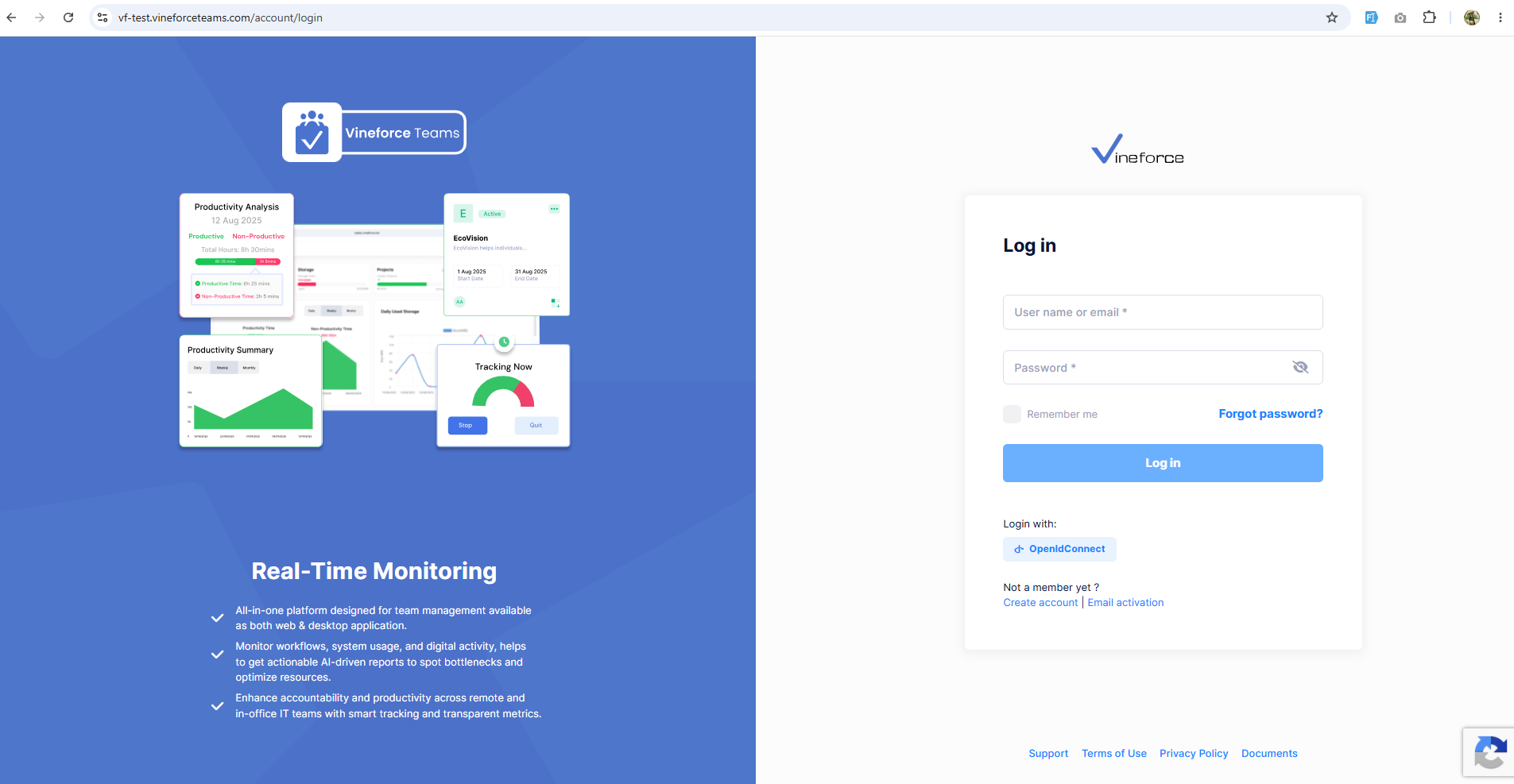
Step 2: Download for Mac
- Navigate to the Downloads section from the left-hand navigation menu.
- Locate the Vineforce Teams Lite (Silent Mode) section.
- Click the Download for Mac button.
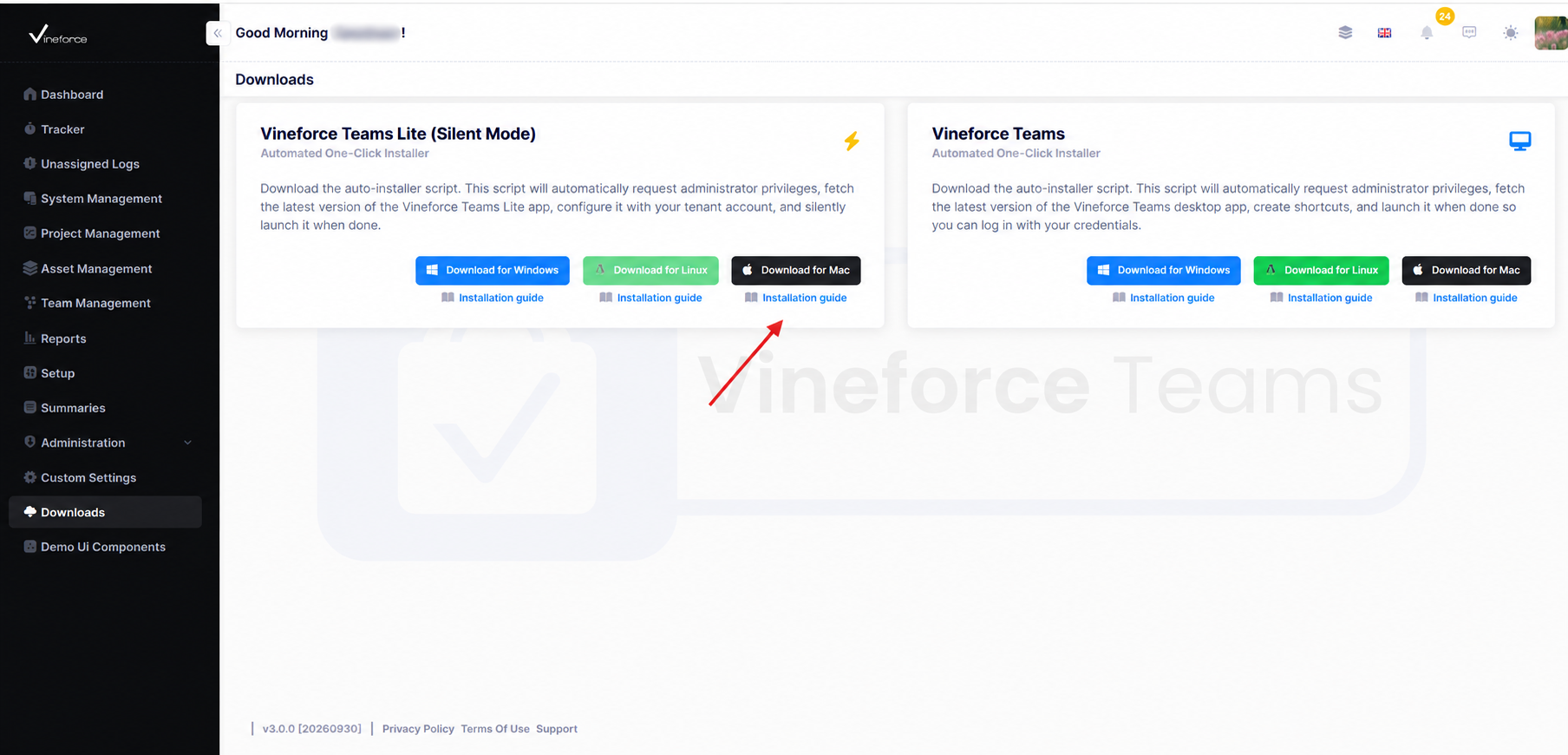
This action downloads a script file (e.g., install-vineforce-teams-lite.command) to your local computer.
Step 3: Trigger the Security Warning
macOS requires explicit permission to run downloaded scripts.
- Go to your Downloads folder.
- Double-click the downloaded
install-vineforce-teams-lite.commandfile. - macOS will block the script and display a security warning. Click Done on this popup.
Step 4: Allow the Script in Privacy & Security
You must instruct macOS that the script is safe to run.
- Open System Settings on your Mac.
- Navigate to Privacy & Security and scroll all the way down to the Security section.
- You will see a message stating that
"install-vineforce-teams-lite.command" was blocked. Click the Open Anyway button.
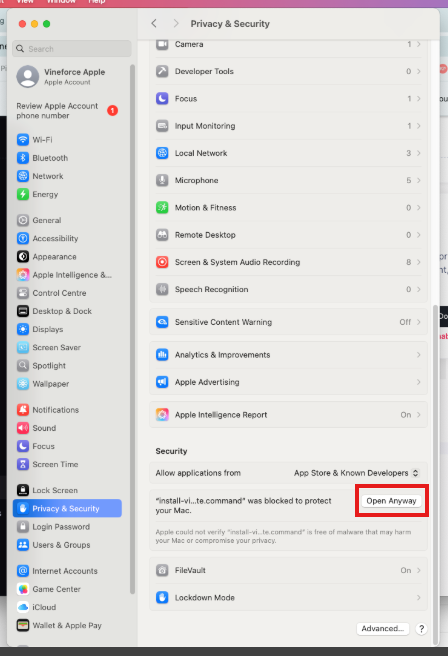
- A new confirmation popup will appear. Click Open Anyway again.
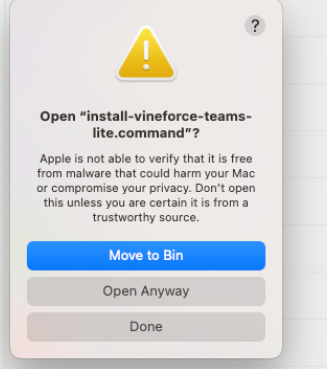
- When prompted, enter your system password (your Mac administrator password) to confirm the changes.
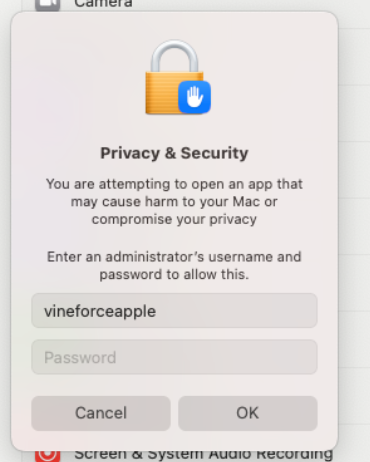
Step 5: Run the Script in Terminal
Now that macOS has permitted the script to run, you can execute it.
- Open your Terminal application.
- Type the following command and press Enter:
zsh ~/Downloads/install-vineforce-teams-lite.command
Wait for the script to complete its setup. It will automatically download dependencies, configure the background services, and start the tracker.
Step 6: Verify the Setup
After the script is finished, you should verify whether the application is running correctly in the background.
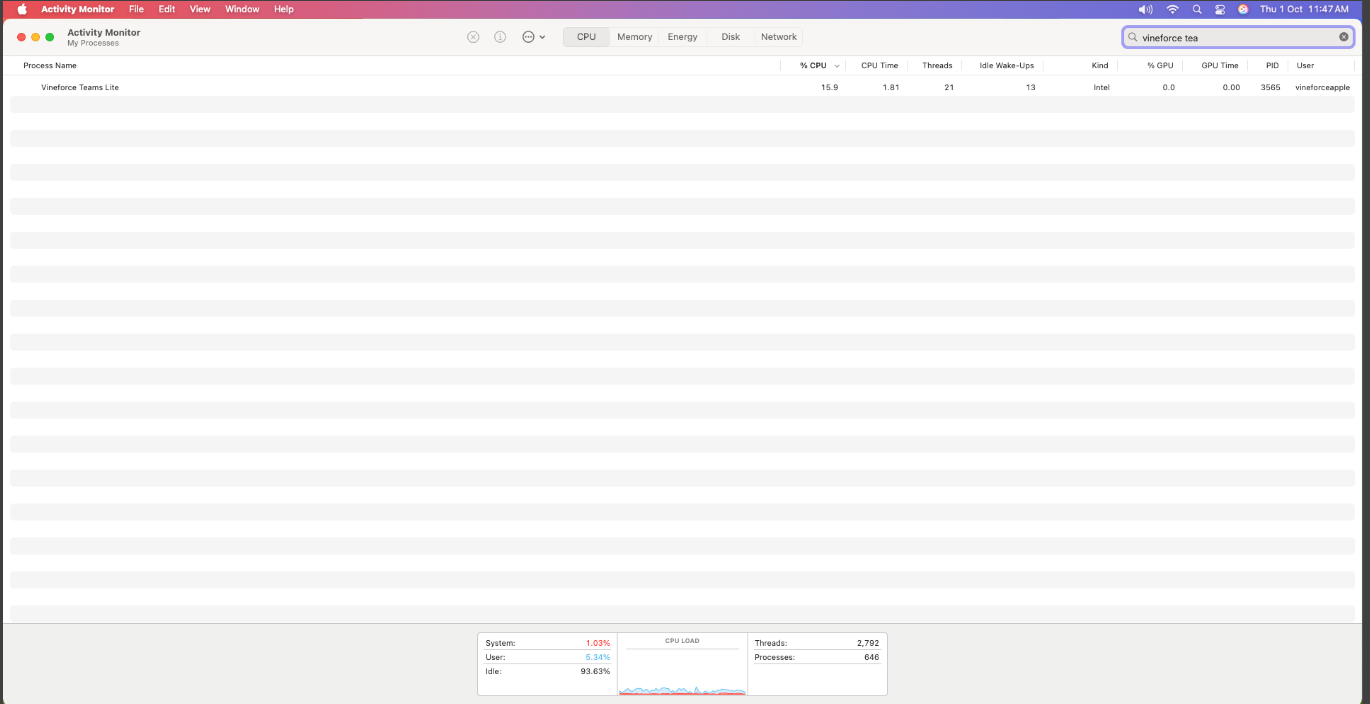
- Open Activity Monitor on your Mac.
- Search for "Vineforce Teams Lite" or "Lite".
- Verify that the process is active and running.
Frequently Asked Questions (FAQ)
Does the macOS tracker support automated startup? Yes. The installation script installs a LaunchAgent to ensure that the background tracker service starts automatically every time you log in.
What should I do if my logs show up in Unassigned Logs? This occurs when the Mac has not been mapped to an employee profile in the portal. Navigate to Tracker → Unassigned Logs in the web app to associate your machine's hostname with the correct user profile.
Which macOS versions are supported? The script supports macOS 11 (Big Sur) and later. Contact support for assistance with older versions.
Related Functionality
- Reconcile Unassigned Logs: Learn how to map time tracking logs synced from this machine to employee profiles.
- Tracker Settings: Adjust intervals, idle thresholds, and screenshot quality.
- Uninstall Vineforce Teams Lite (macOS): Learn how to completely remove the silent macOS tracker from your system.