Install Vineforce Teams | Linux
- Purpose: Install the Vineforce Teams desktop collaboration and tracking application on Linux.
- Navigation: Log in to the web portal, go to the Downloads menu, and select Vineforce Teams for Linux.
- Installation: Open the downloaded
.shscript, copy its code, paste it into a Terminal window, and run it withsudocredentials. - Impact: Activates desktop workspace integration, tray icons, and launches the desktop panel.
Linux
What is the Vineforce Teams Desktop Application for Linux?
Vineforce Teams is a desktop collaboration and activity tracking application that enables users to securely access their organization, collaborate with team members, track work hours, and stay connected through a unified desktop experience.
This guide walks you through the simplified installation process using our automated shell script for Linux.
What are the Linux Prerequisites?
Ensure the target Linux machine meets the following requirements before starting:
| Requirement | Details |
|---|---|
| Operating System | Supported Linux distributions (Ubuntu, Fedora, Debian, etc.) |
| Privileges | Sudo/Root privileges required to run the installation script |
| Internet Access | Active connection required to download the installation packages |
| Disk Space | Minimum of 200 MB of available storage |
How to Download and Install Vineforce Teams Desktop on Linux
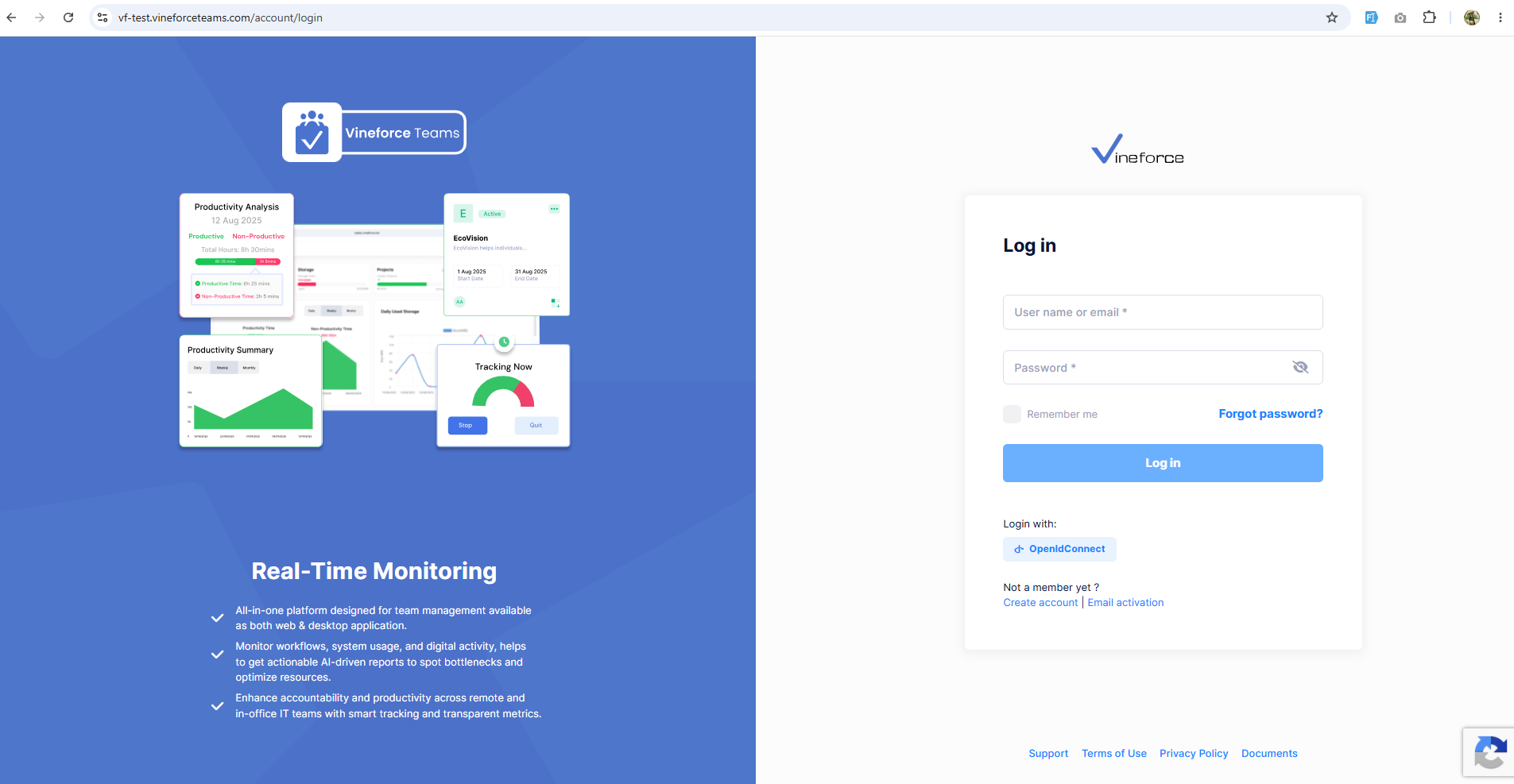
Step 1: Sign In to the Web Portal
Log in to your organization's Vineforce Teams web portal. The URL is specific to your tenancy:
https://<your-tenancy-name>.vineforceteams.com/account/login
Example: If your tenancy name is vf-test, the login URL would be https://vf-test.vineforceteams.com/account/login.
Step 2: Download the Shell Script
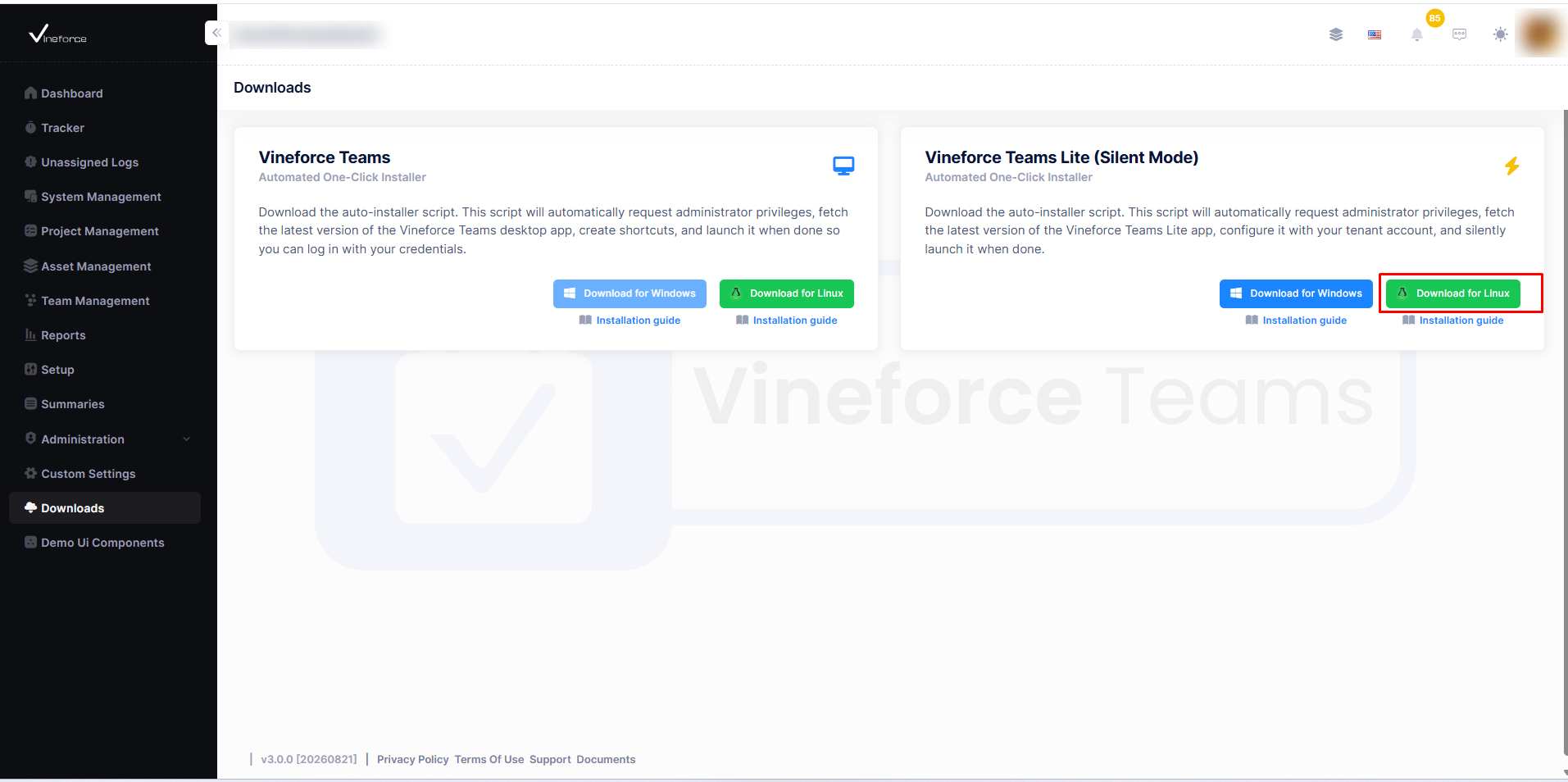
- Navigate to the Downloads section from the left-hand navigation menu.
- Locate the Vineforce Teams section.
- Click Download Vineforce for Linux (or the corresponding desktop link).
This action downloads a shell script file (.sh) to your local computer.
Step 3: Copy the Installation Script
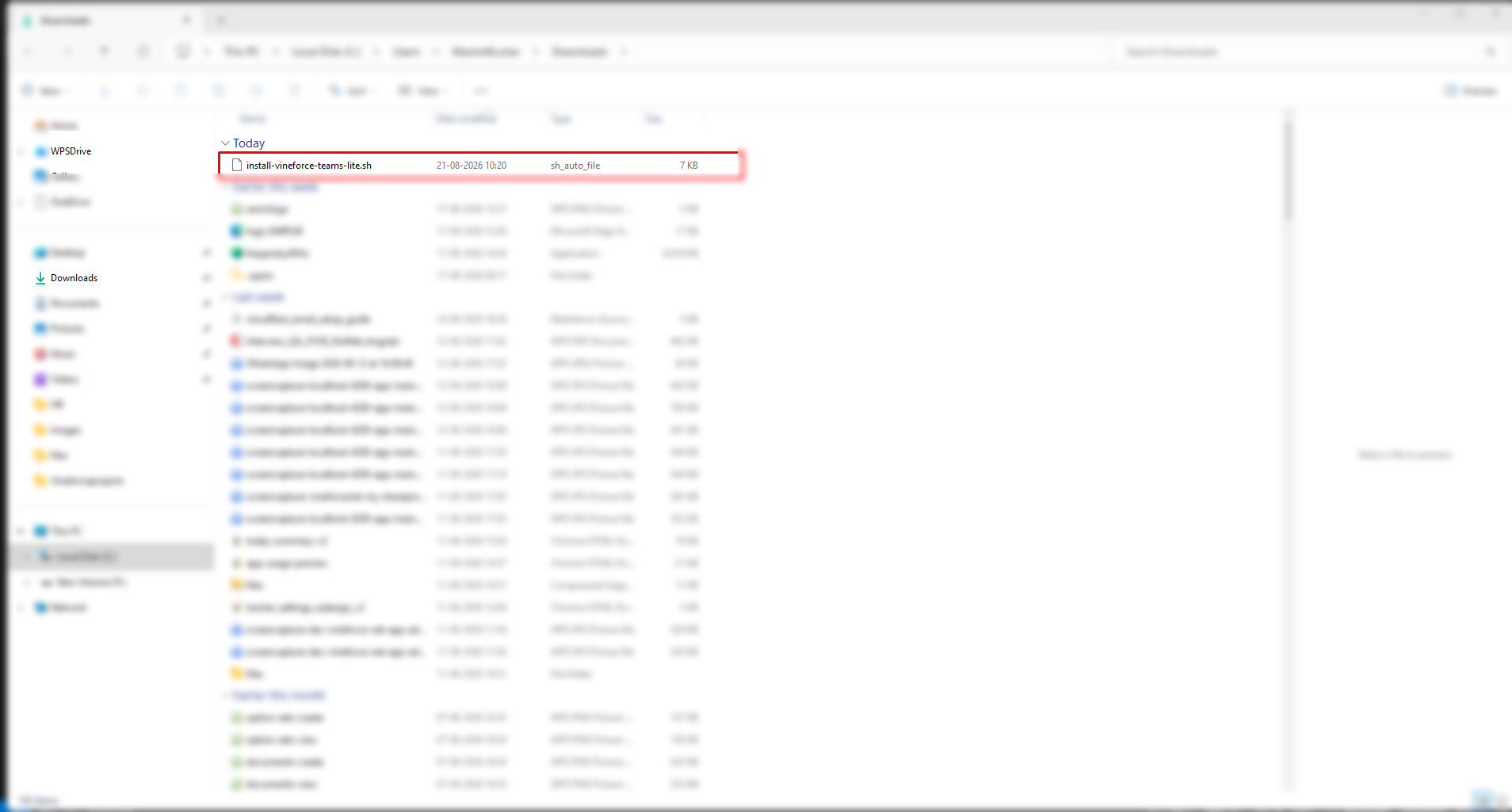
- Open your local Downloads directory (or the destination folder).
- Double-click the downloaded
.shfile to open it in your default text editor (such as Gedit or VS Code). - Select all the text in the file and copy the entire script code.
Step 4: Run the Script in the Terminal
- Open a new Terminal window on your Linux system.
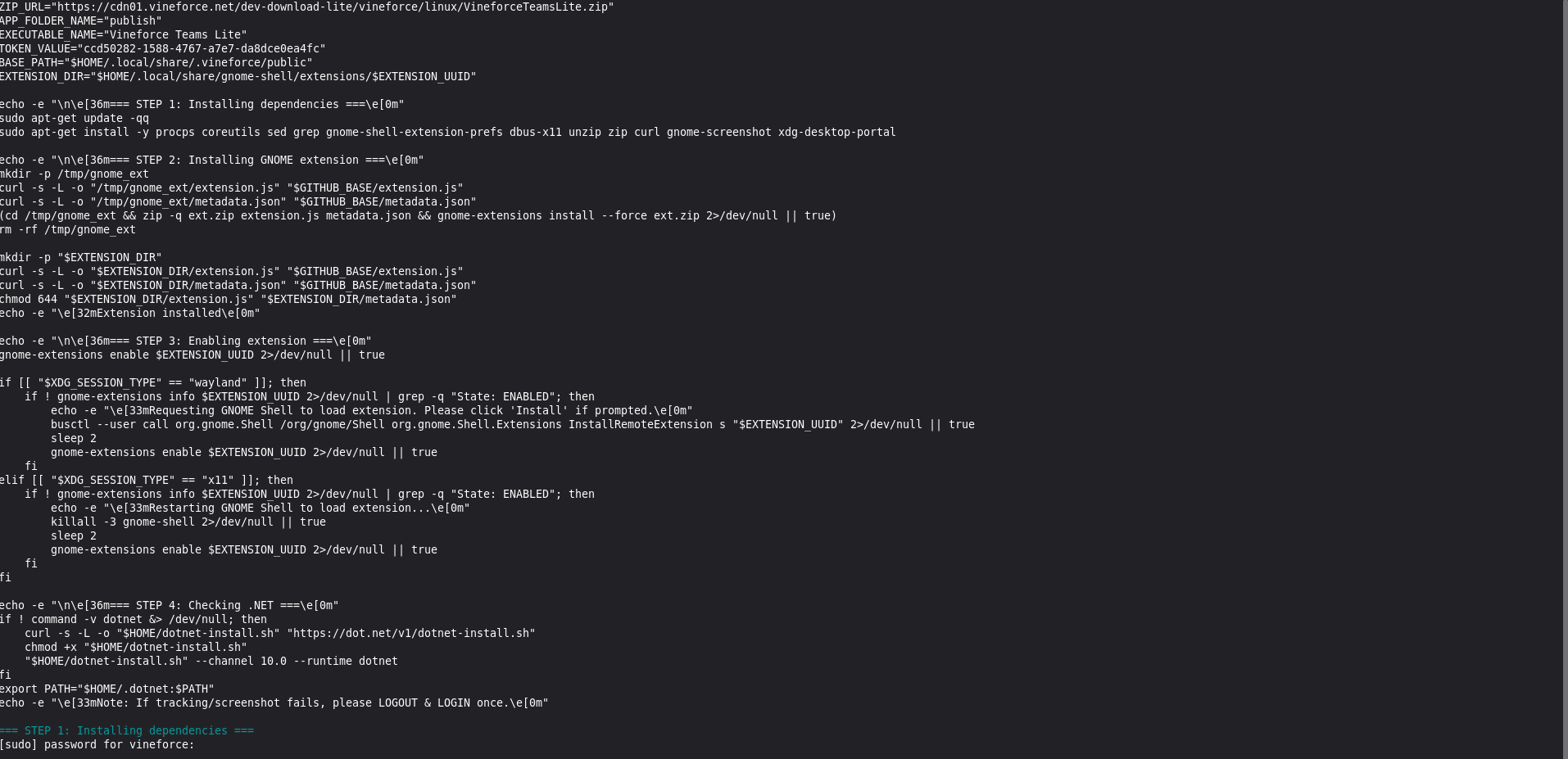
- Paste the copied script code into the terminal.
- Press Enter to run the script.
- If prompted, type your system password (sudo password) and press Enter (note: the characters will not show in the console for security).
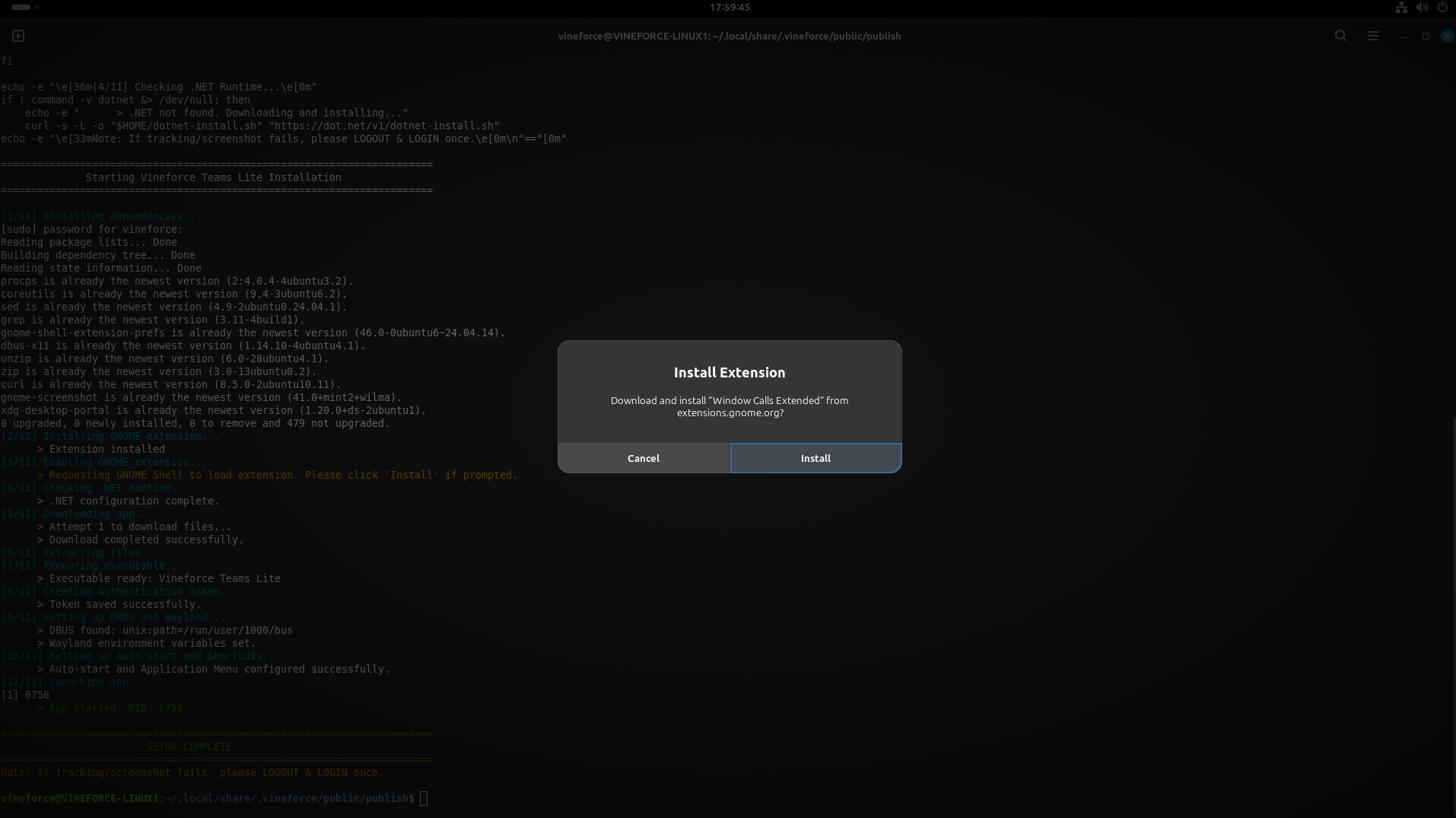
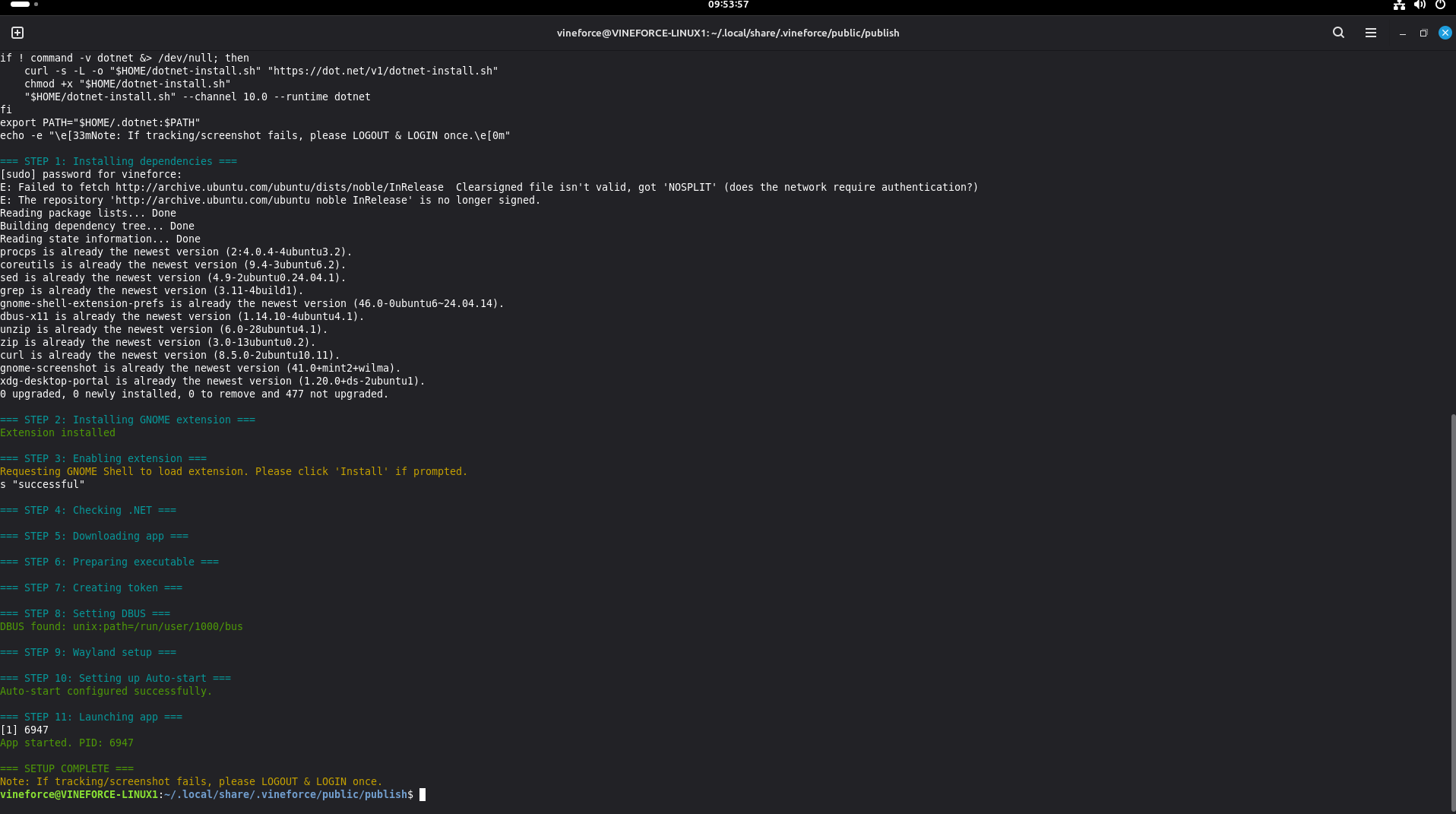
The script will begin downloading required dependencies, configuring the environment, and setting up the desktop panel.
If you are running the GNOME desktop environment, a popup may ask you to install the Window Calls Extended extension. Click Install to allow the application to capture active window titles and screenshots correctly.
How to Verify the Installation on Linux
The terminal displays the automated installation progress. Wait for the process to finish successfully.
To verify the app is running:
- The script should automatically launch the Vineforce Teams Desktop application upon completion.
- You should see the Vineforce Teams icon in your system tray or application launcher.
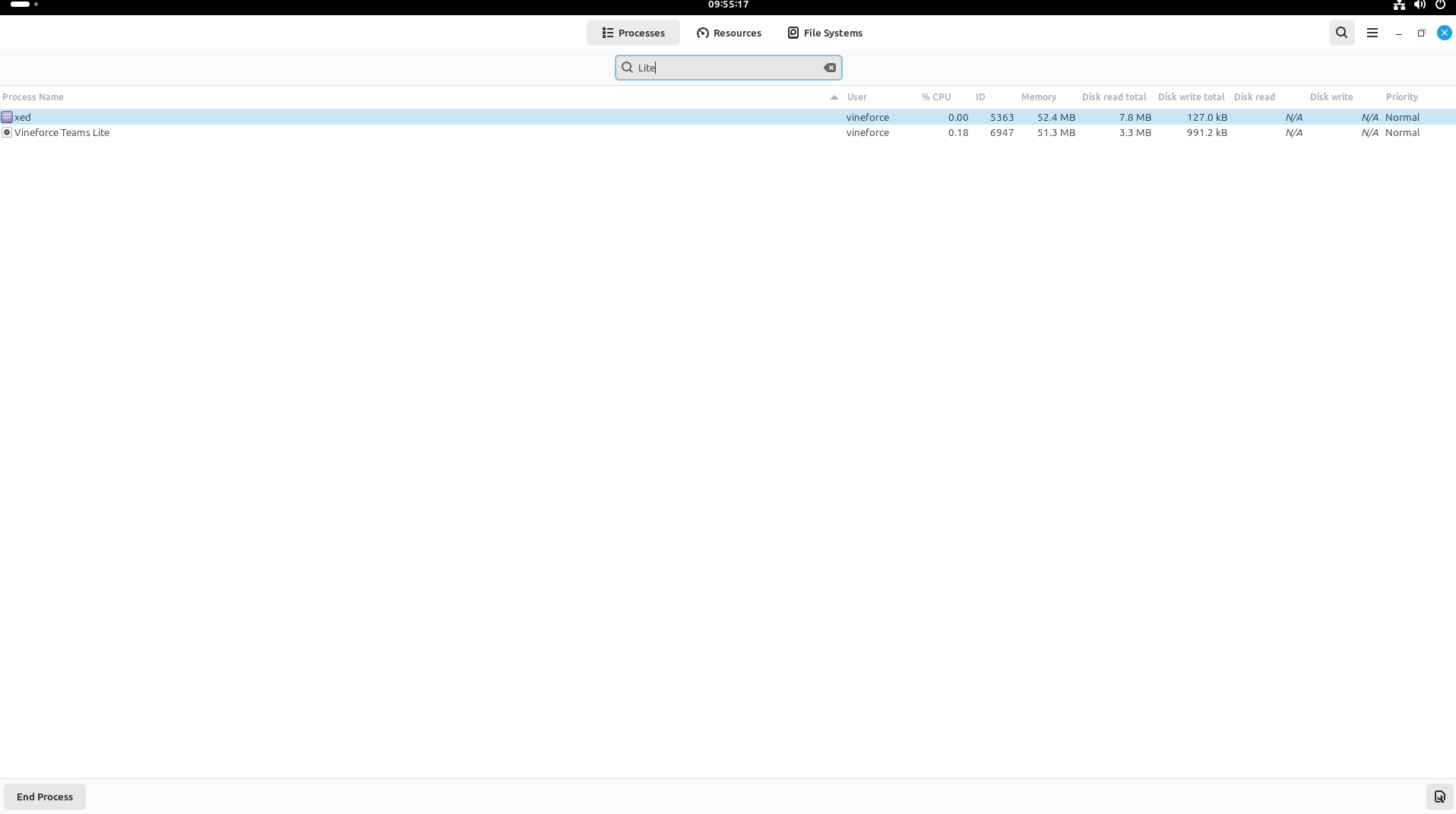
- Alternatively, you can open your System Monitor and search for "Vineforce" to confirm the desktop processes are active.
If activity logging or screenshot capturing does not work after installation, you must log out of your Linux session and log back in for the GNOME extension changes to take effect. You can trigger a logout from the terminal using gnome-session-quit --logout.
Congratulations! Vineforce Teams has been successfully installed on your Linux computer. You can now access your organization's workspace.
How to Troubleshoot Linux Installation Errors
| Problem | Potential Cause | Recommended Solution |
|---|---|---|
| Permission Denied | Script execution blocked | Run chmod +x filename.sh in the terminal to grant execute permissions. |
| Gnome Extension Missing | Gnome-shell integration missing | Re-run script and ensure you click "Install" on Gnome shell prompts. |
| Application fails to launch | Cache or system lock | Restart your computer and try running the application from the desktop icon or launcher. |
Frequently Asked Questions (FAQ)
Does the desktop app support automated startup on Linux?
Yes. The installer script configures desktop startup profiles to ensure that the collaboration panel launches automatically upon user login.
What should I do if my logs show up in Unassigned Logs?
This occurs when the Linux machine has not been mapped to an employee profile in the portal. Navigate to Tracker → Unassigned Logs in the web app to associate the machine hostname with the correct user.
Related Functionality
- Reconcile Unassigned Logs: Learn how to map time tracking logs synced from this machine to employee profiles.
- Tracker Settings: Adjust intervals, idle thresholds, and screenshot quality.
- Uninstall Vineforce Teams (Linux): Learn how to remove the Linux desktop tracker.