Install Vineforce Teams Lite on Linux
Linux
Vineforce Teams Lite is a desktop collaboration application that enables users to securely access their organization, collaborate with team members, and stay connected through a unified desktop experience.
This guide walks you through the new, simplified installation process using our automated shell script for Linux.
Prerequisites
| Requirement | Details |
|---|---|
| Operating System | Supported Linux distributions |
| Privileges | Sudo/Root privileges required to run the installation script |
| Internet Access | Required to download the installation package |
| Disk Space | At least 200 MB of available storage |
Step 1: Sign In to the Web Portal
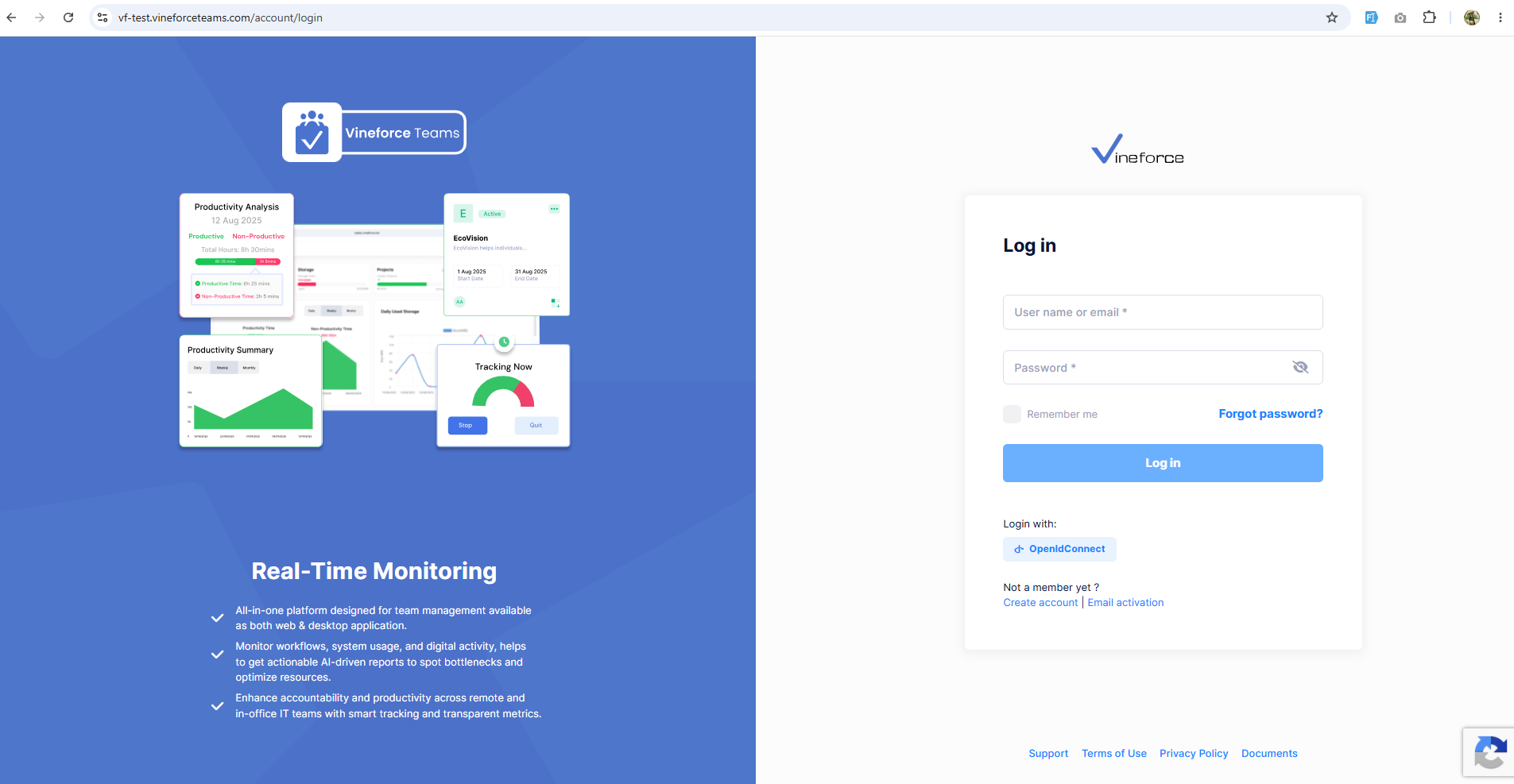
First, log in to your organization's Vineforce Teams web portal. The URL is specific to your tenancy (e.g., https://<your-tenancy-name>.vineforceteams.com/account/login).
For example, if your tenancy name is vf-test, the URL would be:
https://vf-test.vineforceteams.com/account/login
Step 2: Download the Application
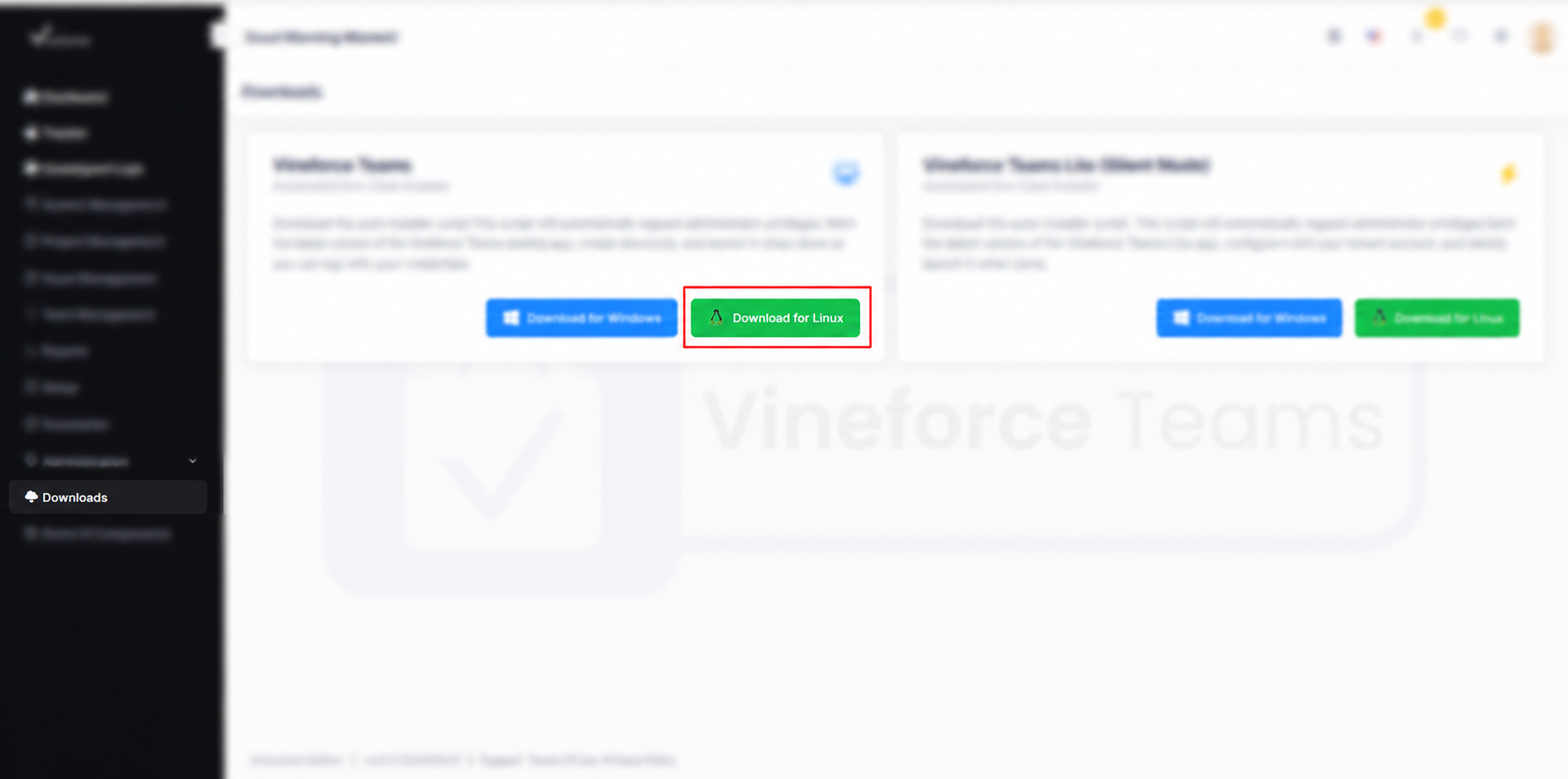
- Once logged in, navigate to Downloads from the left-hand menu.
- Locate the Vineforce Teams section.
- Click the Download VineforceLite for Linux button.
This will download a shell script file (.sh) to your computer.
Step 3: Copy the Installation Script
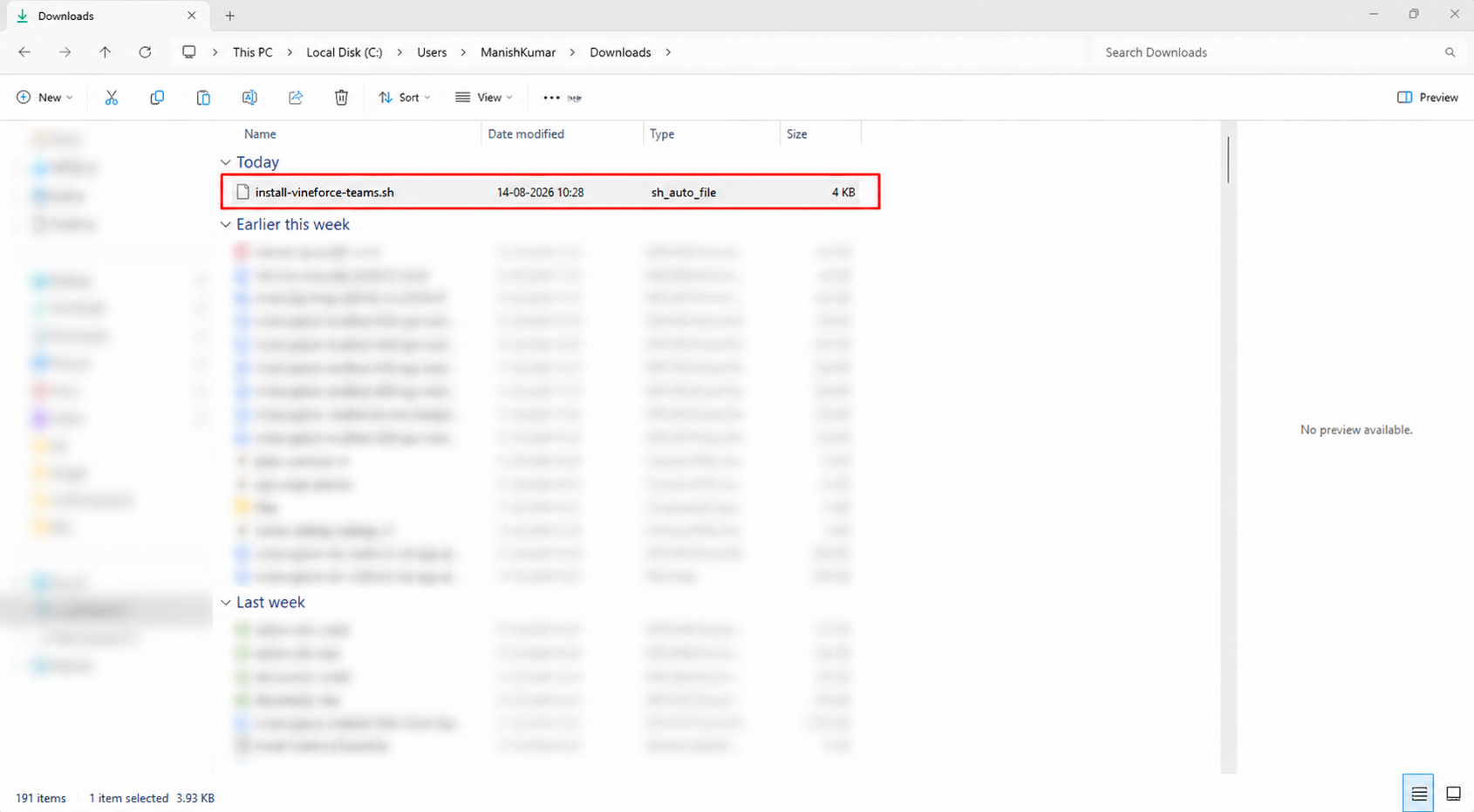
- Open your Downloads folder (or the location where the file was saved).
- Double-click the downloaded
.shfile. It will automatically open in your default text editor (like Notepad/Gedit). - Select all the text in the file and copy the entire script.
Step 4: Run the Script in Terminal
- Open a new Terminal window on your Linux system.
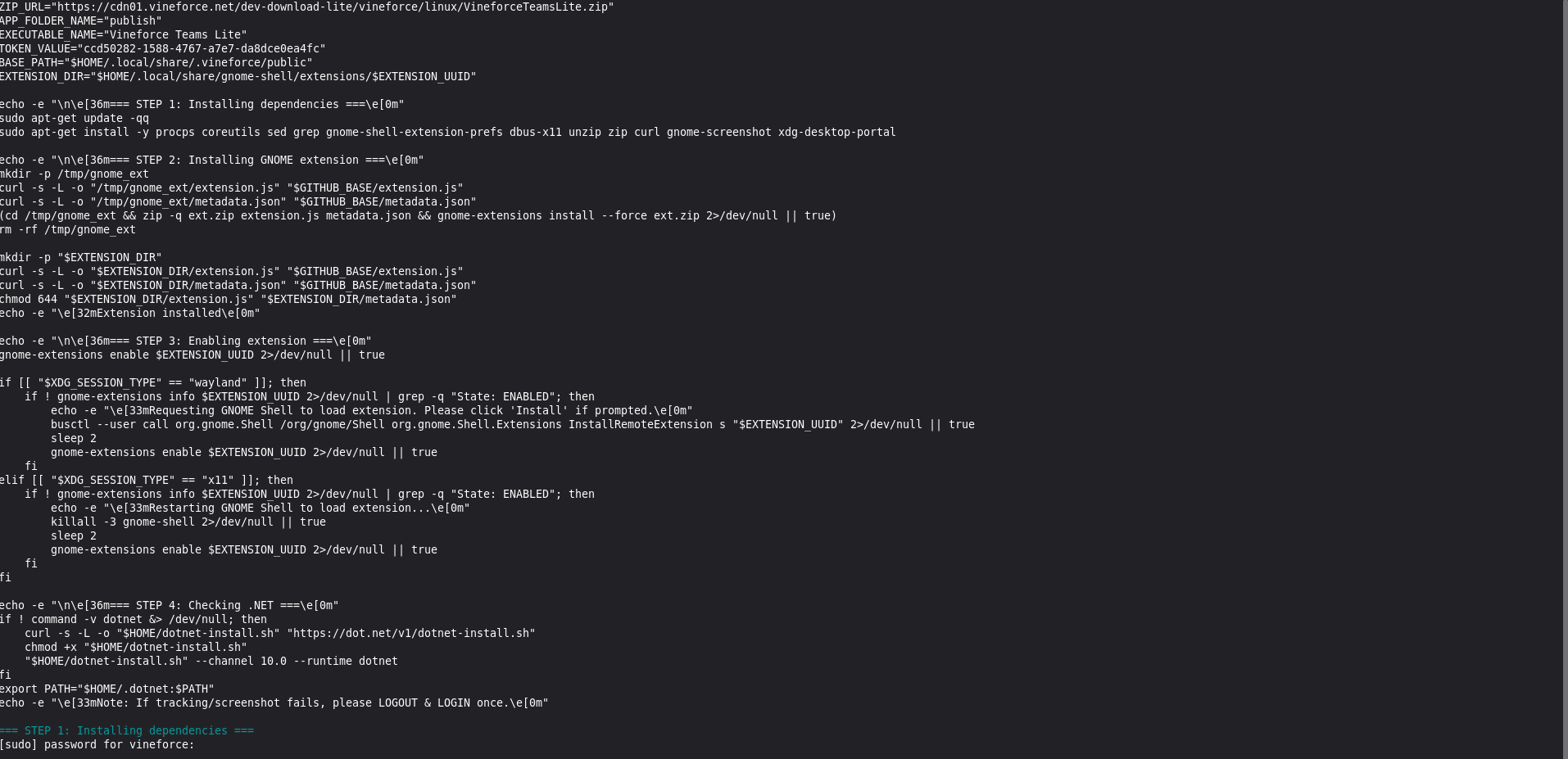
- Paste the script you copied in the previous step into the terminal.
- Press Enter to run the script.
- Your system may ask for your system password (sudo/root password). Type your password and press Enter (note: the password characters won't be displayed as you type).
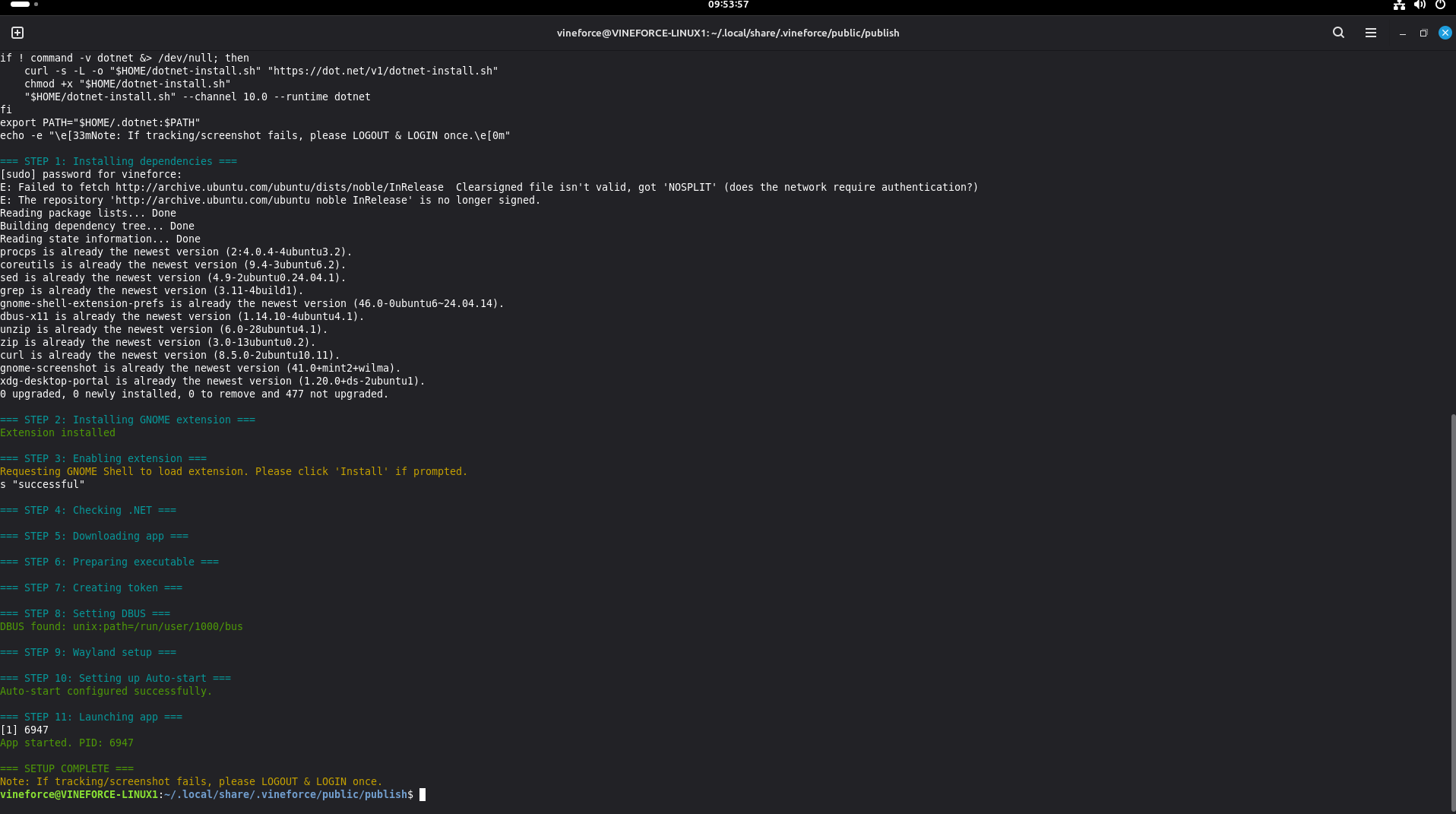
After entering the password, the .sh script will start working and begin the automated installation process. It will automatically download dependencies, configure your environment, and launch the application.
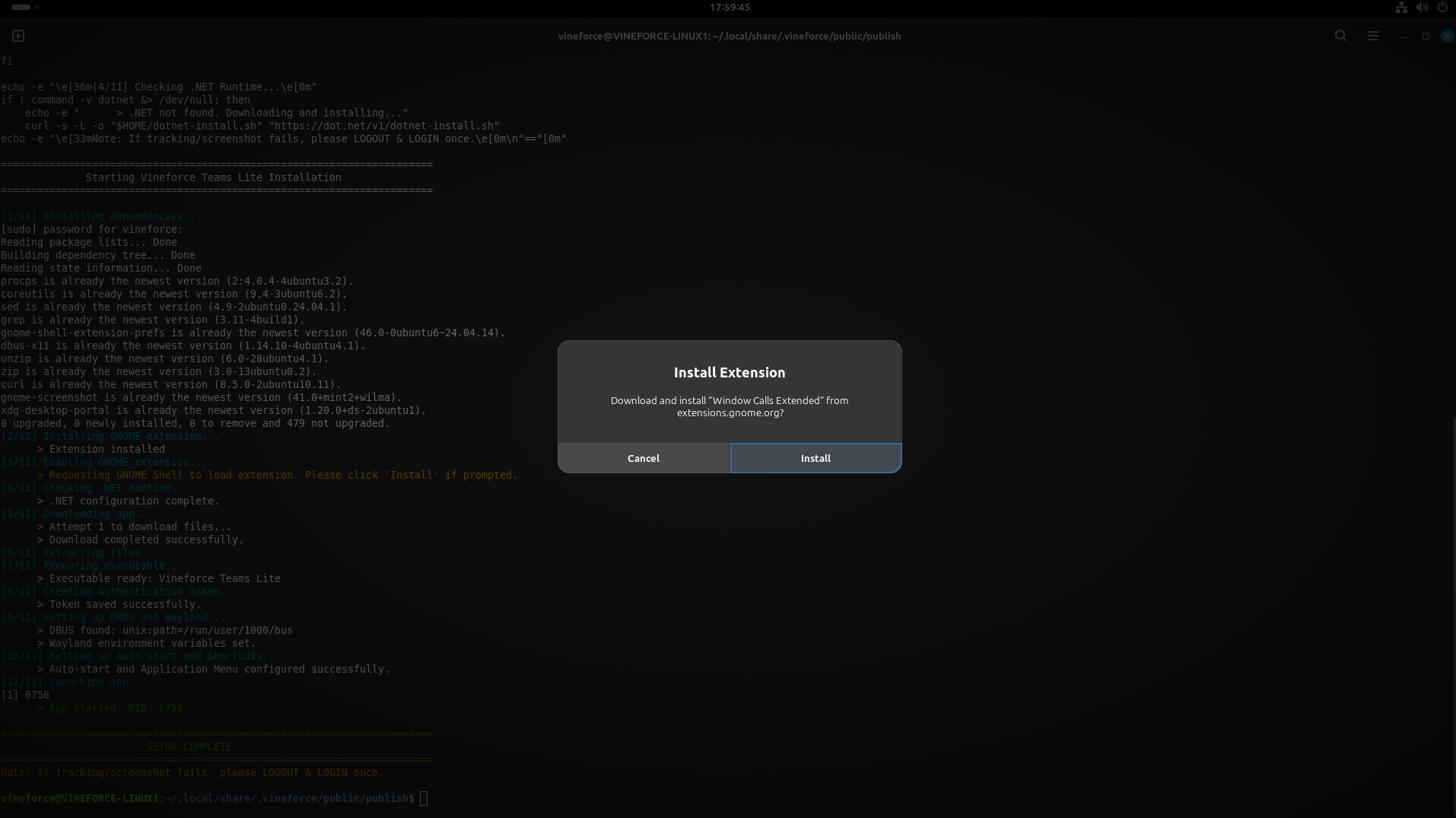
During the installation, if you are running GNOME, you may see a prompt asking to install the Window Calls Extended extension. Click Install to allow the application to properly manage windows and screenshots.
Step 5: Verify the Installation
The terminal will display the automated installation progress. Wait for the process to finish successfully.
To verify if the app is running:
- The script should automatically launch the Vineforce Teams Lite application upon completion.
- You should see the Vineforce Teams Lite icon in your system tray or application launcher.
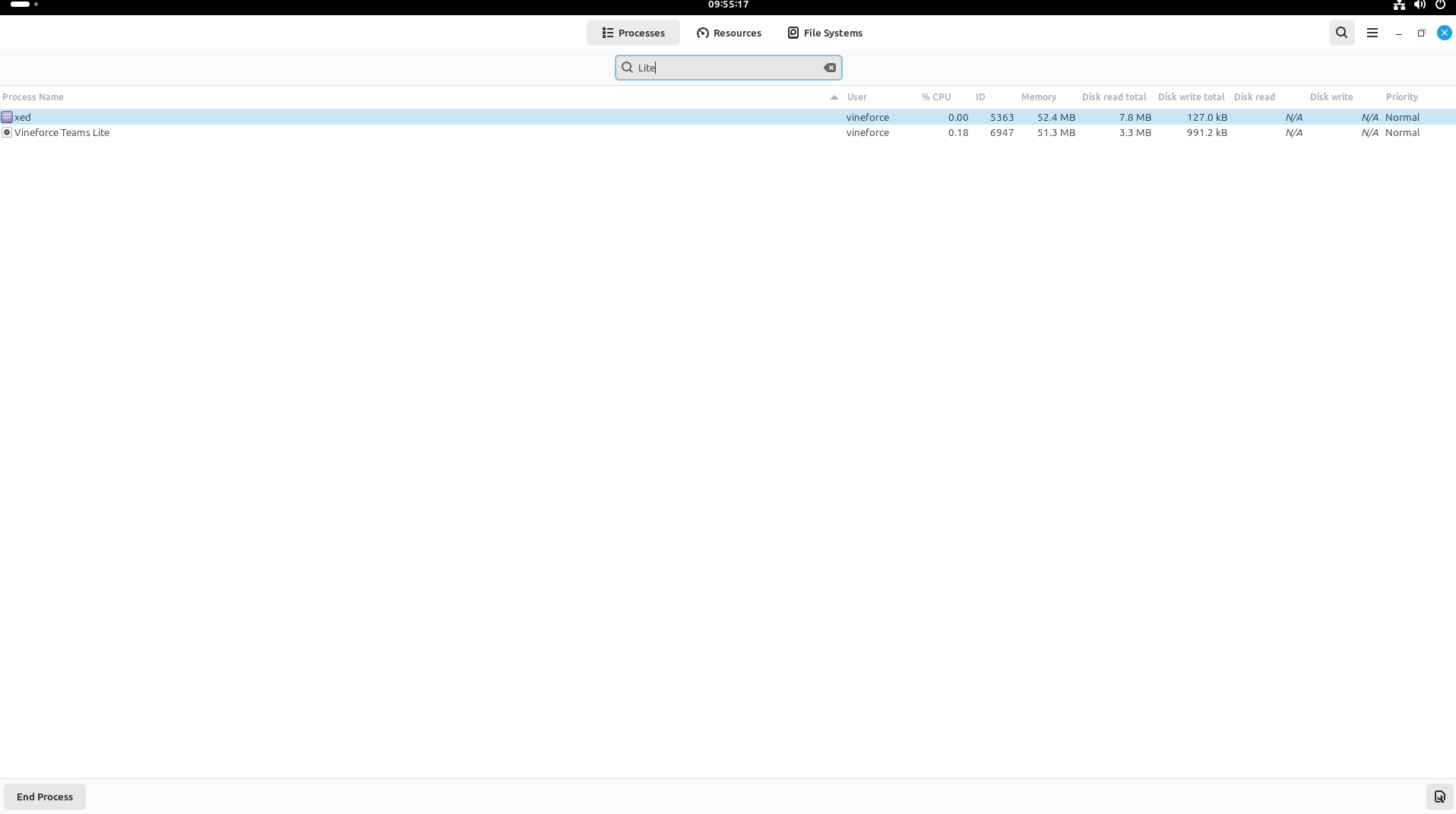
- Alternatively, you can open your System Monitor and search for "Lite" to confirm the
Vineforce Teams Liteprocess is active.
If tracking or screenshots fail to work after the installation, you will need to logout and log back in to ensure the GNOME extension and changes take effect properly.
Otherwise, there is no need to do this. (Note: If needed, you can quickly trigger a logout from the terminal using the command gnome-session-quit --logout).
Installation Complete
Congratulations!
Vineforce Teams Lite has been successfully installed on your Linux computer.
You can now start collaborating with your team and accessing your organization's workspace.
Troubleshooting
| Problem | Solution |
|---|---|
| Script permission denied | You can manually make the script executable by running chmod +x filename.sh in the terminal before running it. |
| Installation fails or gets stuck | Ensure you have an active internet connection and entered the correct system password when prompted. |
| Application does not launch | Make sure you have logged out and restarted your computer as instructed. Check your application launcher for Vineforce Teams Lite. |
What's Next?
With Vineforce Teams Lite installed, you can begin communicating, collaborating, and accessing your organization's resources directly from your desktop.
Continue exploring the documentation to learn more about the available features and configuration options.