Install Vineforce Teams Lite | PowerShell Silent Install on Linux
Install Vineforce Teams Lite on Linux Using PowerShell
Linux | GNOME / Wayland Display Server | Silent / Unattended Install
This guide covers the fully automated, silent PowerShell deployment of Vineforce Teams Lite on Linux. The script requires only your auth token — it handles everything else without any manual steps.
The script runs 10 automated steps:
- Installs system dependencies via
apt-get(curl, unzip, dbus-x11, gnome-screenshot, xdg-desktop-portal, and more) - Installs the GNOME Shell extension (
window-calls-extended) from GitHub - Enables the GNOME Shell extension
- Checks and installs the .NET 10 runtime (if not already present)
- Downloads the application ZIP and saves it to
~/.local/share/.vineforce/public/ - Extracts the ZIP to
~/.local/share/.vineforce/public/publish/and removes the archive - Writes your auth token to
~/.local/share/.vineforce/token - Configures the DBUS session address (critical for GNOME integration)
- Sets Wayland environment variables (
GDK_BACKEND,QT_QPA_PLATFORM,XDG_RUNTIME_DIR) - Sets execute permission on the binary and launches the application
No manual file management or configuration is required after the script starts.
Windows installation For Windows deployment, see the Windows PowerShell script or the Windows manual install guide.
Prerequisites
| Requirement | Details |
|---|---|
| Operating System | Linux with GNOME Shell and Wayland display server |
| PowerShell Core | pwsh 7.0+ — must be installed before running the script |
| Internet Access | Required to download dependencies, .NET 10, and the application |
| sudo Privileges | Required for apt-get (Steps 1 and 3 inside the script) |
| .NET 10 Runtime | Installed automatically by the script if missing |
| GNOME Shell | Required for the window-calls-extended extension |
Wayland requirement
This script is designed for systems running Wayland with GNOME Shell. Most modern Linux distributions (Ubuntu 22.04+, Fedora 25+, Debian 12+) default to Wayland. Verify with echo $XDG_SESSION_TYPE — it should output wayland.
Step 1: Install PowerShell Core
PowerShell Core (pwsh) must be installed on your Linux system before running the script. It is not installed by default on Linux.
Ubuntu / Debian
sudo apt-get update
sudo apt-get install -y wget apt-transport-https software-properties-common
wget -q "https://packages.microsoft.com/config/ubuntu/$(lsb_release -rs)/packages-microsoft-prod.deb"
sudo dpkg -i packages-microsoft-prod.deb
sudo apt-get update
sudo apt-get install -y powershell
Fedora / RHEL / CentOS
sudo rpm --import https://packages.microsoft.com/keys/microsoft.asc
sudo dnf install -y https://packages.microsoft.com/rhel/9/prod/packages-microsoft-prod.rpm
sudo dnf install -y powershell
Verify the installation
pwsh --version
You should see output like PowerShell 7.x.x. If the command is found, you're ready to proceed.
Official docs For other distributions or more detail, see the official Microsoft PowerShell installation guide.
Step 2: Get Your Authentication Token
Contact your Vineforce Teams administrator to obtain your company-specific authentication token.
The token looks like this:
xxxxxxxx-xxxx-xxxx-xxxx-xxxxxxxxxxxx
Why is this token needed? The authentication token links the desktop application to your company's Vineforce Teams environment. Without it, the application cannot connect or sync data.
Step 3: Download the PowerShell Script
Download install-vineforce-lite-linux.ps1
Save the script to your Linux machine. For example:
# Save to your home directory
~/install-vineforce-lite-linux.ps1
# Or to a dedicated folder
~/installers/install-vineforce-lite-linux.ps1
Step 4: Update the Script with Your Token
The only manual configuration required is setting your authentication token. Open install-vineforce-lite-linux.ps1 in a text editor and find the token line at the top of the script:
# ---------- TOKEN -----------
$tokenValue = "add your token"
Replace add your token with your actual token:
# ---------- TOKEN -----------
$tokenValue = "xxxxxxxx-xxxx-xxxx-xxxx-xxxxxxxxxxxx"
Save and close the file. This is the only change required before running.
Step 5: Run the Script with PowerShell Core
Open a terminal and run the script using pwsh.
-
Navigate to the folder where the script is saved:
cd ~ -
Give the script execute permission:
chmod +x install-vineforce-lite-linux.ps1 -
Run the script:
pwsh ./install-vineforce-lite-linux.ps1
The script will now run all 10 steps automatically — no further input is needed.
sudo password prompt
The first two automated steps inside the script use sudo apt-get. You may be prompted for your sudo password during this stage.
What the Script Does (Automatic Steps 6–10)
Once started, the script runs fully automatically. Here is exactly what happens in each step.
Step 6 (Automatic): Install System Dependencies
The script runs apt-get to install all required system packages in a single command:
sudo apt-get update -qq
sudo apt-get install -y procps coreutils sed grep gnome-shell-extension-prefs \
dbus-x11 unzip curl gnome-screenshot xdg-desktop-portal
| Package | Purpose |
|---|---|
procps / coreutils | Core process and system utilities |
sed / grep | Text processing tools |
gnome-shell-extension-prefs | GNOME extension management |
dbus-x11 | DBUS session support for GNOME |
unzip / curl | Archive extraction and download tools |
gnome-screenshot | Screenshot capture for Vineforce |
xdg-desktop-portal | Desktop portal integration |
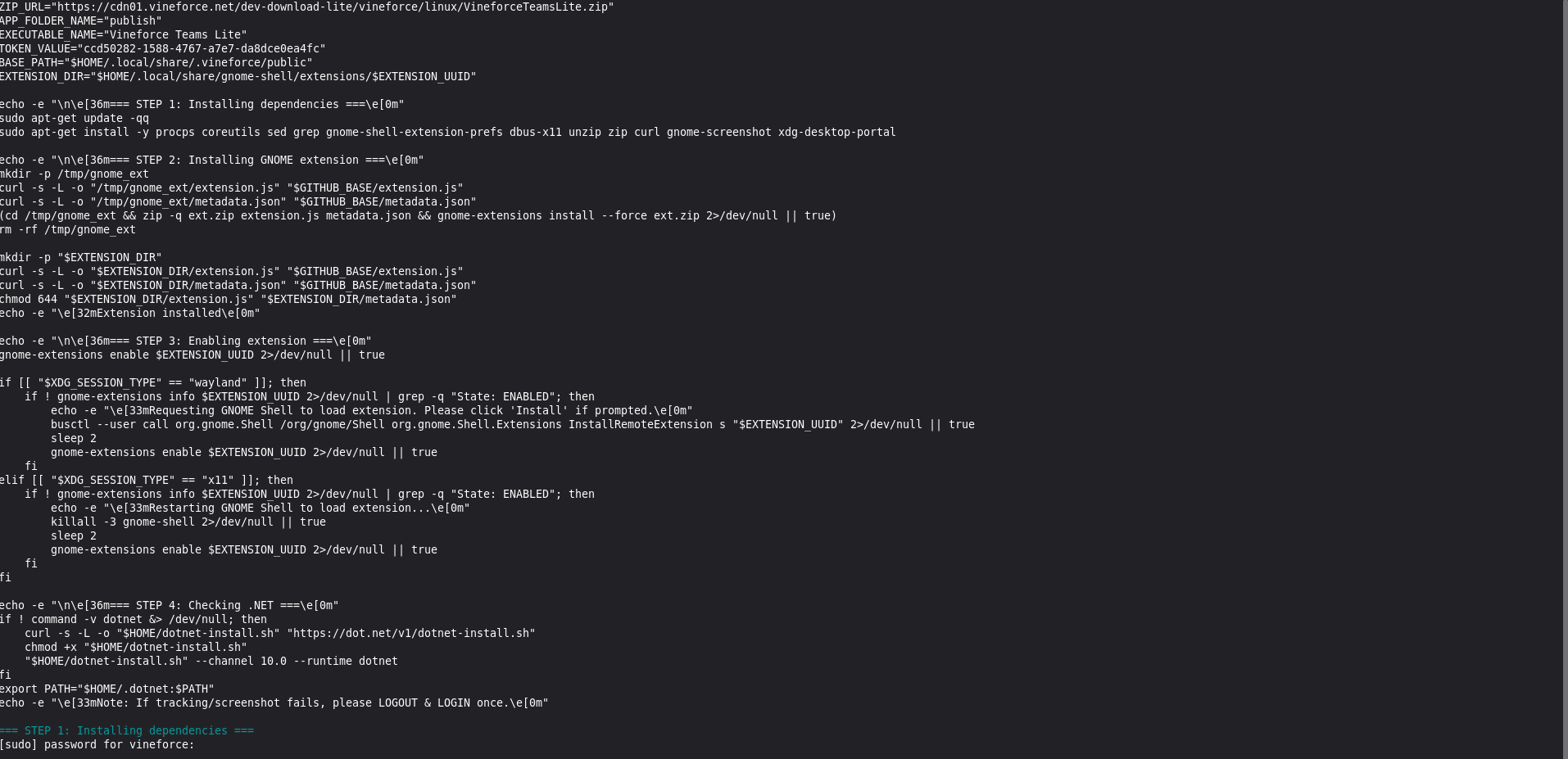
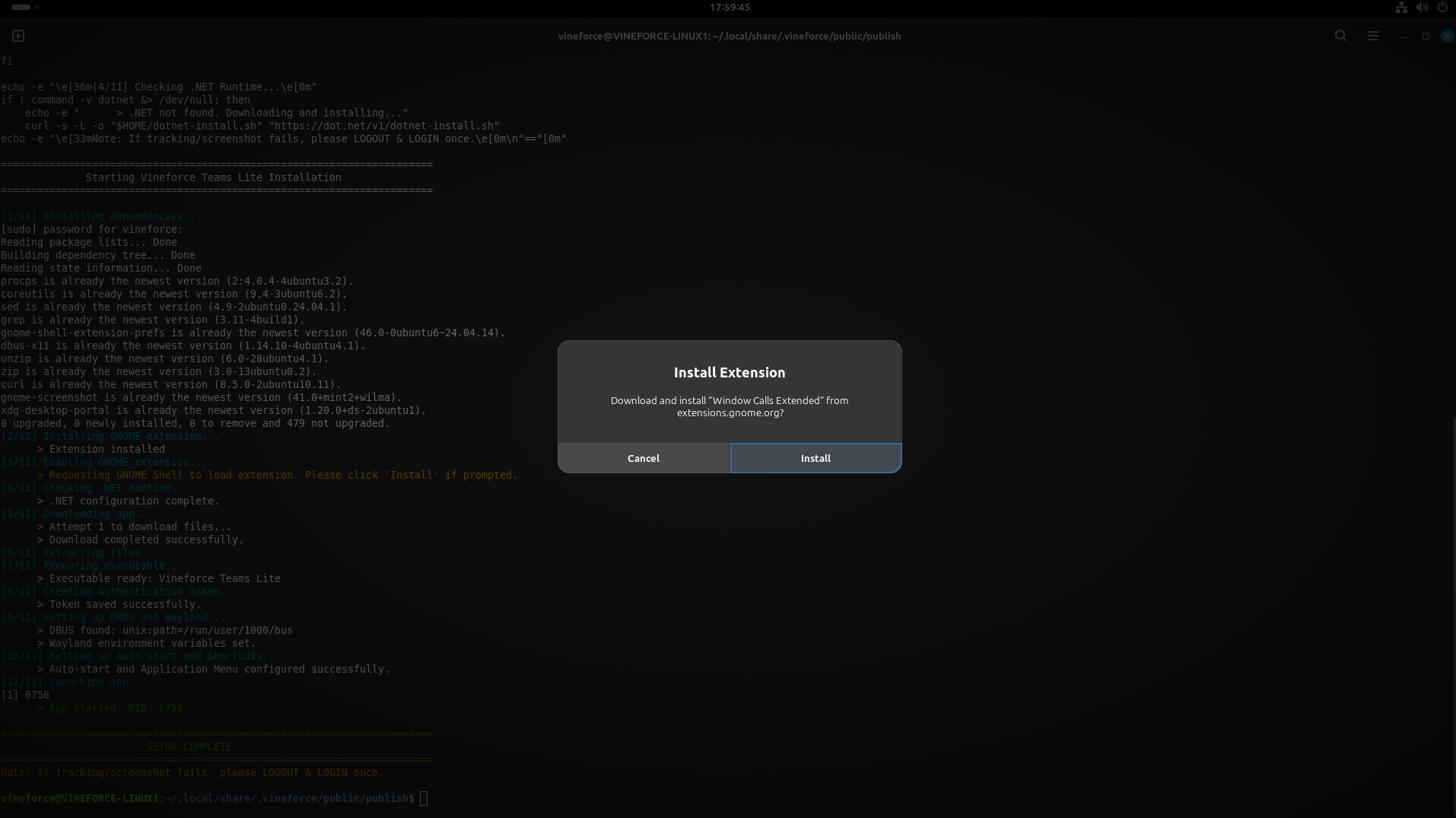
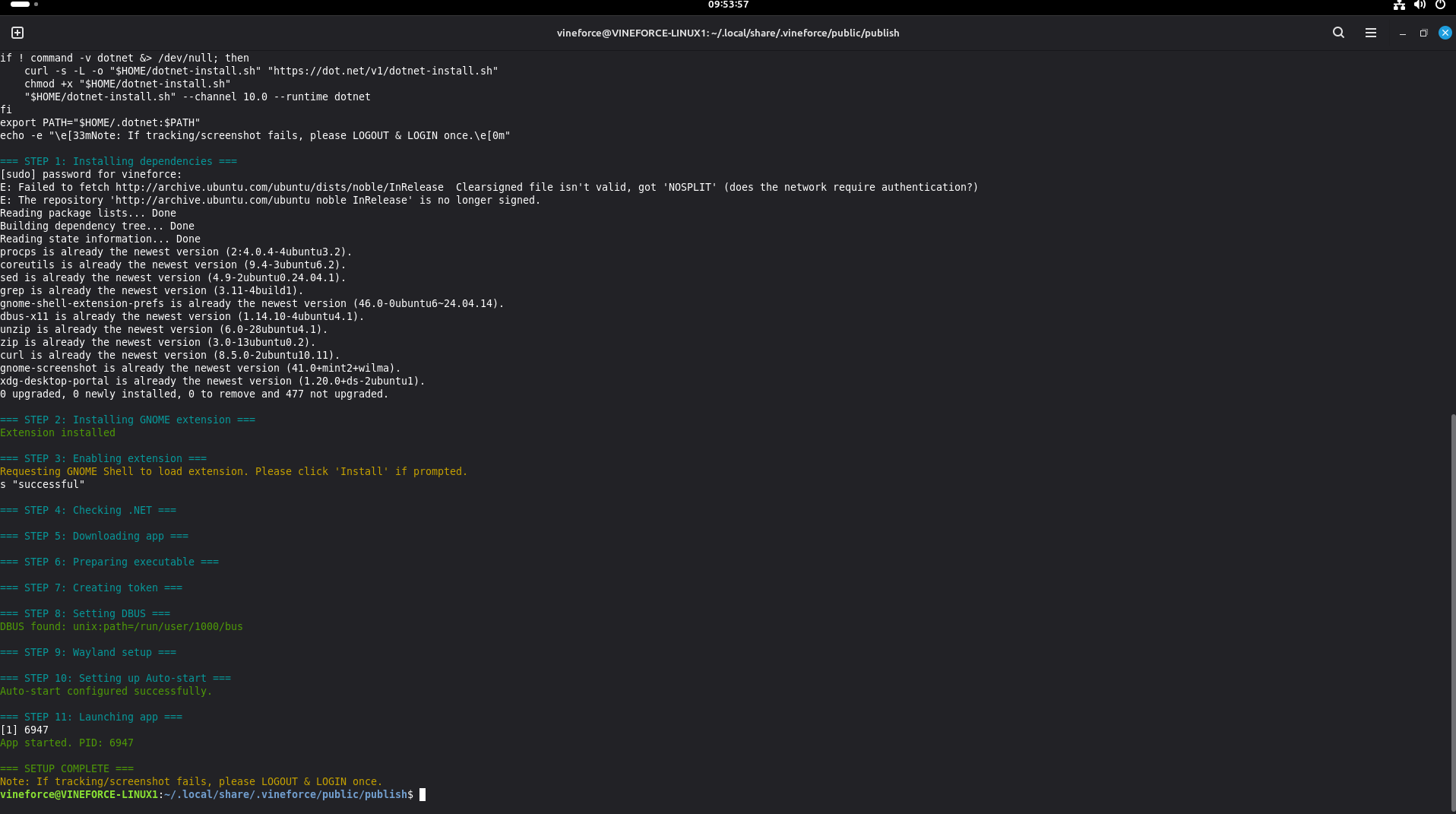
=== STEP 1: Installing dependencies ===
Step 7 (Automatic): Install and Enable GNOME Shell Extension
Vineforce Teams Lite requires the window-calls-extended GNOME Shell extension for window management and screenshot functionality.
The script downloads the extension directly from GitHub:
https://raw.githubusercontent.com/hseliger/window-calls-extended/main/extension.js
https://raw.githubusercontent.com/hseliger/window-calls-extended/main/metadata.json
It installs the extension to:
~/.local/share/gnome-shell/extensions/[email protected]/
Then enables it:
gnome-extensions enable [email protected]
=== STEP 2: Installing GNOME extension ===
Extension installed at ~/.local/share/gnome-shell/extensions/[email protected]
=== STEP 3: Enabling extension ===
After installation
If screenshot or window tracking features aren't working after the first run, log out and log back in to your GNOME session. GNOME Shell extensions are activated on session start.
Step 8 (Automatic): .NET 10 Runtime Check and Installation
The script checks whether the .NET runtime is available on your system.
- If .NET is found → skips installation and continues
- If .NET is not found → downloads the official Microsoft install script and installs the .NET 10 runtime into
~/.dotnet/
$HOME/dotnet-install.sh --channel 10.0 --runtime dotnet
The PATH and DOTNET_ROOT environment variables are updated for the current session automatically:
$env:PATH = "$HOME/.dotnet:$env:PATH"
$env:DOTNET_ROOT = "$HOME/.dotnet"
=== STEP 4: Checking .NET ===
Step 9 (Automatic): Download, Extract, and Verify the Application
After .NET is ready, the script:
-
Creates the app folder if it doesn't exist:
~/.local/share/.vineforce/public/ -
Downloads the application ZIP from Vineforce CDN:
https://cdn01.vineforce.net/download-lite/vineforce/linux/VineforceTeamsLite.zipSaves it locally as:
~/.local/share/.vineforce/public/app.zip -
Extracts the ZIP to:
~/.local/share/.vineforce/public/The application binary lands at:
~/.local/share/.vineforce/public/publish/Vineforce Teams Lite -
Removes the ZIP file immediately after extraction
-
Verifies the executable exists — if not found, the script prints the path and exits with an error
-
Sets execute permission on the binary:
chmod +x '~/.local/share/.vineforce/public/publish/Vineforce Teams Lite' -
Writes your auth token to:
~/.local/share/.vineforce/tokenUsing the
$tokenValuevariable you set in Step 4.
=== STEP 5: Downloading app ===
=== STEP 6: Preparing executable ===
=== STEP 7: Creating token ===
Step 10 (Automatic): DBUS Fix, Wayland Setup, and Launch
This is a three-part final step.
DBUS Session Fix
Many automated environments do not have DBUS_SESSION_BUS_ADDRESS set. The script detects and applies it:
if (-not $env:DBUS_SESSION_BUS_ADDRESS) {
$env:DBUS_SESSION_BUS_ADDRESS = bash "echo $DBUS_SESSION_BUS_ADDRESS"
}
This is critical for GNOME Shell integration and screenshot tools to function correctly.
=== STEP 8: Setting DBUS ===
DBUS found: unix:path=/run/user/1000/bus
Wayland Environment Configuration
The script configures the display environment for the current session:
| Variable | Value | Purpose |
|---|---|---|
GDK_BACKEND | wayland | Forces GTK apps to use Wayland |
QT_QPA_PLATFORM | wayland | Forces Qt apps to use Wayland |
XDG_RUNTIME_DIR | /run/user/<uid> | Runtime directory for the current user |
DOTNET_ROOT | ~/.dotnet | .NET runtime path |
=== STEP 9: Wayland setup ===
Application Launch
The script launches Vineforce Teams Lite as a non-blocking background process using Start-Process:
$process = Start-Process `
-FilePath $exePath `
-WorkingDirectory $workingDir `
-PassThru
On success, it prints the process ID:
=== STEP 10: Launching app ===
App started. PID: 12345
=== SETUP COMPLETE ===
If tracking/screenshot fails → LOGOUT & LOGIN once.
Step 11: Verify the Application is Running
After the script completes, confirm that Vineforce Teams Lite is active.
Check the Process
Open a new terminal and run:
ps aux | grep -i "Vineforce"
If the process appears in the output, Vineforce Teams Lite is running.
Check the Token File
Confirm the token file was created with your token:
cat ~/.local/share/.vineforce/token
It should display your authentication token.
Check the Extracted Files
Confirm the application was extracted correctly:
ls ~/.local/share/.vineforce/public/publish/
The folder should contain the Vineforce Teams Lite executable and supporting files.
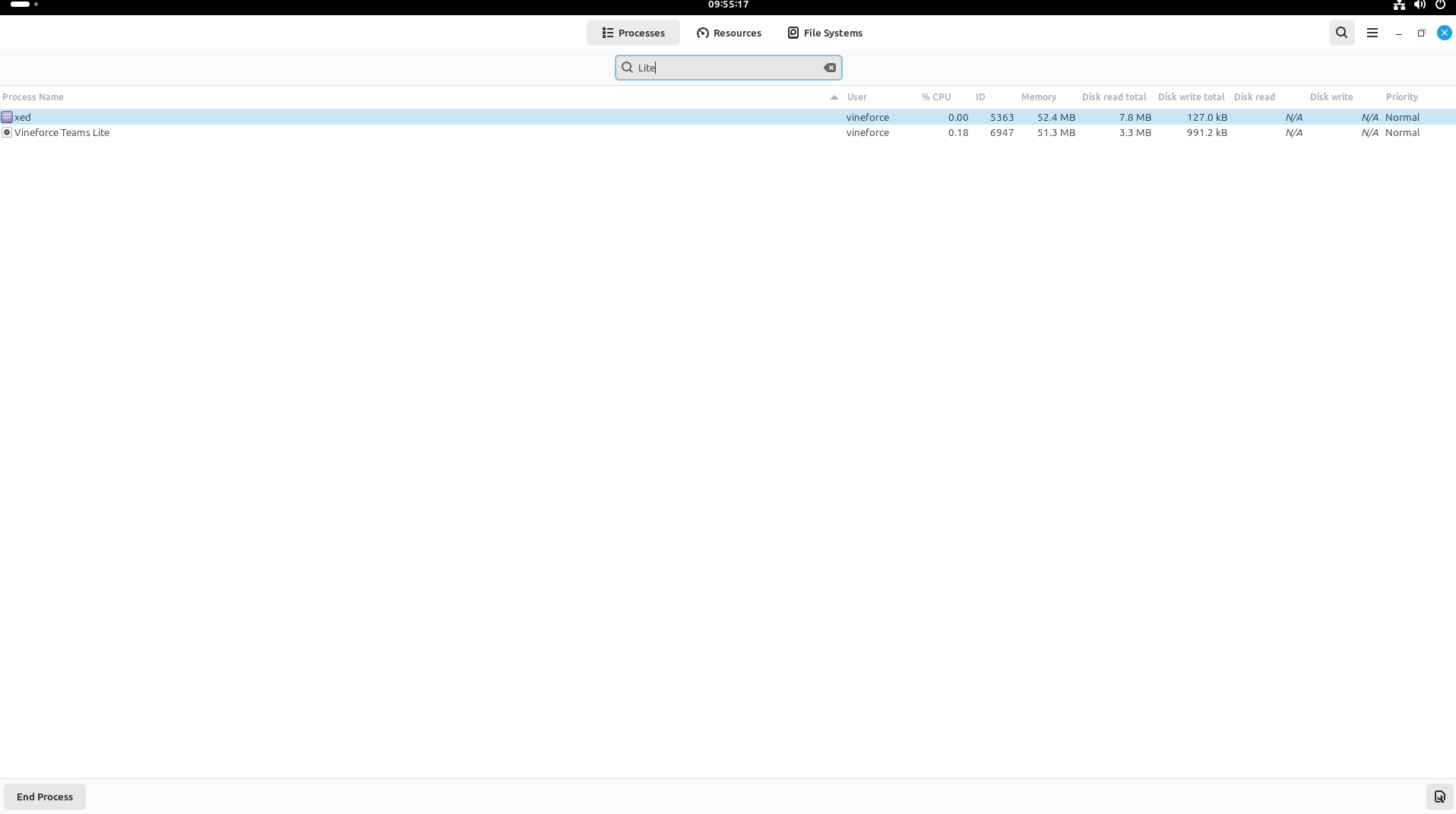
Check with System Monitor
Alternatively, open your desktop's System Monitor (GNOME: gnome-system-monitor, KDE: ksysguard) and search for Vineforce.
Troubleshooting
| Problem | Solution |
|---|---|
pwsh: command not found | PowerShell Core is not installed. Follow Step 1 for your distribution. |
| Script permission denied | Run chmod +x install-vineforce-lite-linux.ps1 before executing. |
apt-get fails during dependency install | Ensure sudo access is available and internet connection is active. Run sudo apt-get update manually first. |
| GNOME extension not found after install | Log out and log back in to your GNOME session to reload the shell. |
gnome-extensions command not found | Install gnome-shell-extension-prefs manually: sudo apt-get install gnome-shell-extension-prefs. |
| .NET install fails | Ensure internet access and that curl or wget is available: which curl. |
| ZIP download fails | Ensure no firewall or proxy blocks cdn01.vineforce.net. Test with: curl -I https://cdn01.vineforce.net. |
| Executable not found after extract | The ZIP structure may have changed. Check the extracted directory: ls ~/.local/share/.vineforce/public/. |
| Token file not created | Verify the $tokenValue line at the top of the script was updated correctly in Step 4 and re-run. |
| App launches but screenshot/tracking fails | Log out and log back in to activate the GNOME Shell extension. This is required after first install. |
| DBUS not found warning | Your session may not have a DBUS address. Log out and log back in. The yellow warning is non-fatal. |
| App fails to launch (Wayland error) | Confirm your session is running Wayland: echo $XDG_SESSION_TYPE should output wayland. X11-only sessions are not supported. |
| Process exits immediately after launch | Run pwsh -NonInteractive ./install-vineforce-lite-linux.ps1 and review the terminal output for errors. |
Best Practices
- Verify your session type before running:
echo $XDG_SESSION_TYPE— must outputwayland - Install PowerShell Core before running the script: verify with
pwsh --version - Update the
$tokenValueat the top of the script — each company token is unique; do not leave"add your token"as-is - Run as a standard user (not root) — the script uses
$HOMEpaths that must resolve to your user directory - Log out and log in after the first installation if screenshot or tracking features are not working — this reloads the GNOME Shell extension
- Re-run the script to update the application — it overwrites the extracted files and relaunches automatically
What's Next?
Once Vineforce Teams Lite is running, it will begin tracking activity and syncing with your Vineforce Teams environment.
View the recorded data by logging into the Vineforce Teams Web Application.
Need to remove Vineforce Teams Lite? See our Linux uninstall guide.
For Windows deployment, see: