Assets
Overview
The Assets module is the central repository for managing all organizational assets. It provides complete visibility into asset ownership, availability, allocation, and lifecycle history.
Asset Management → Assets
Assets Page
Summary Cards
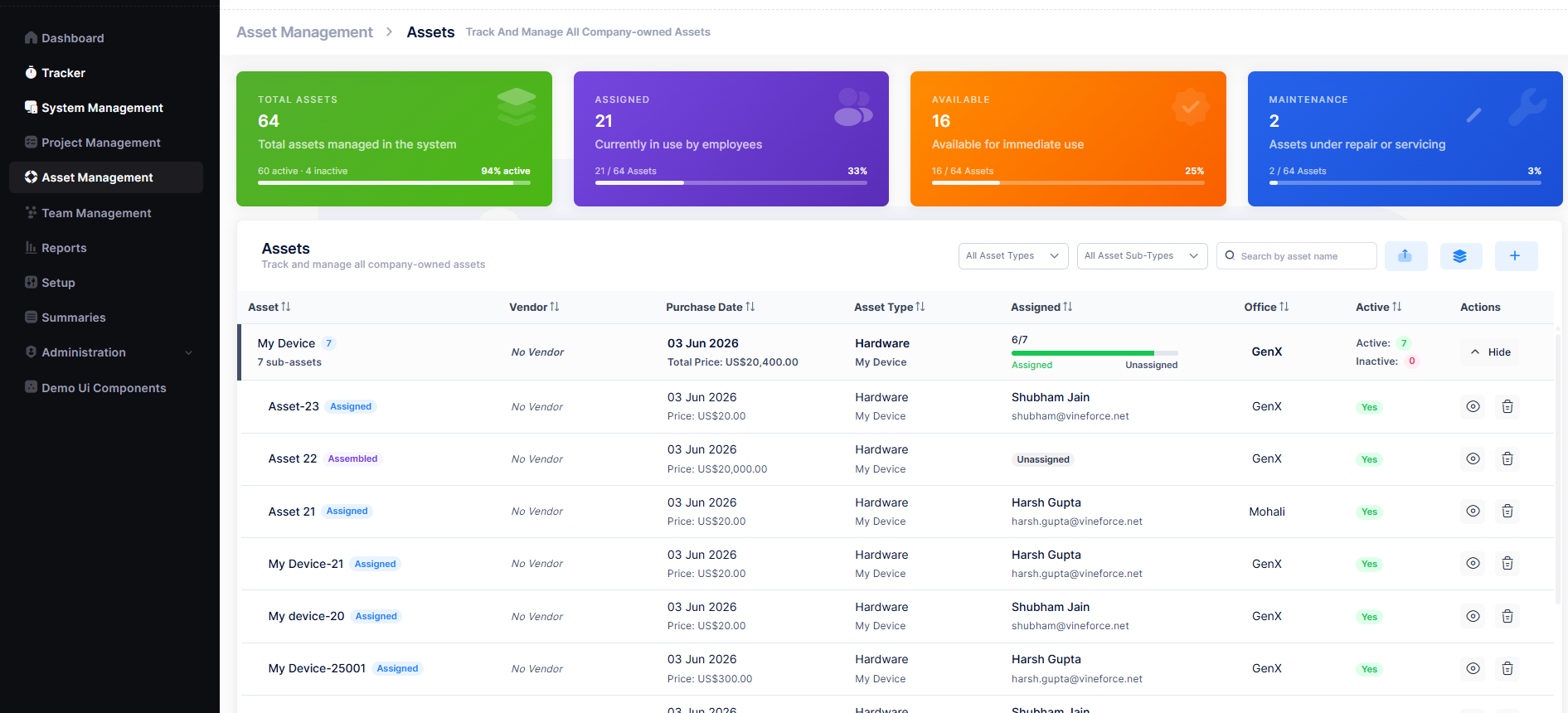
The top of the Assets page shows a real-time overview of the asset inventory:
| Card | Description |
|---|---|
| Total Assets | Total number of assets managed in the system (active + inactive) |
| Assigned | Assets currently in use by employees |
| Available | Assets ready for immediate assignment |
| Maintenance | Assets currently under repair or servicing |
Asset List
Assets are grouped by asset type. Each group shows the total number of sub-assets and can be expanded using the Show button to view individual assets. Each record displays:
| Column | Description |
|---|---|
| Asset | Asset name, sub-asset count, and status badge (e.g. Assigned, Assembled) |
| Vendor | Vendor linked to the asset |
| Purchase Date | Date the asset was purchased and total price |
| Asset Type | Asset category and sub-type |
| Assigned | Assigned vs unassigned count with a visual progress bar |
| Office | Office or location of the asset |
| Active | Active/Inactive count for sub-assets |
Filters for Asset Type and Asset Sub-Type are available above the list, along with a Search by asset name field.
Create a New Asset
Assets can be created individually or assembled from components.
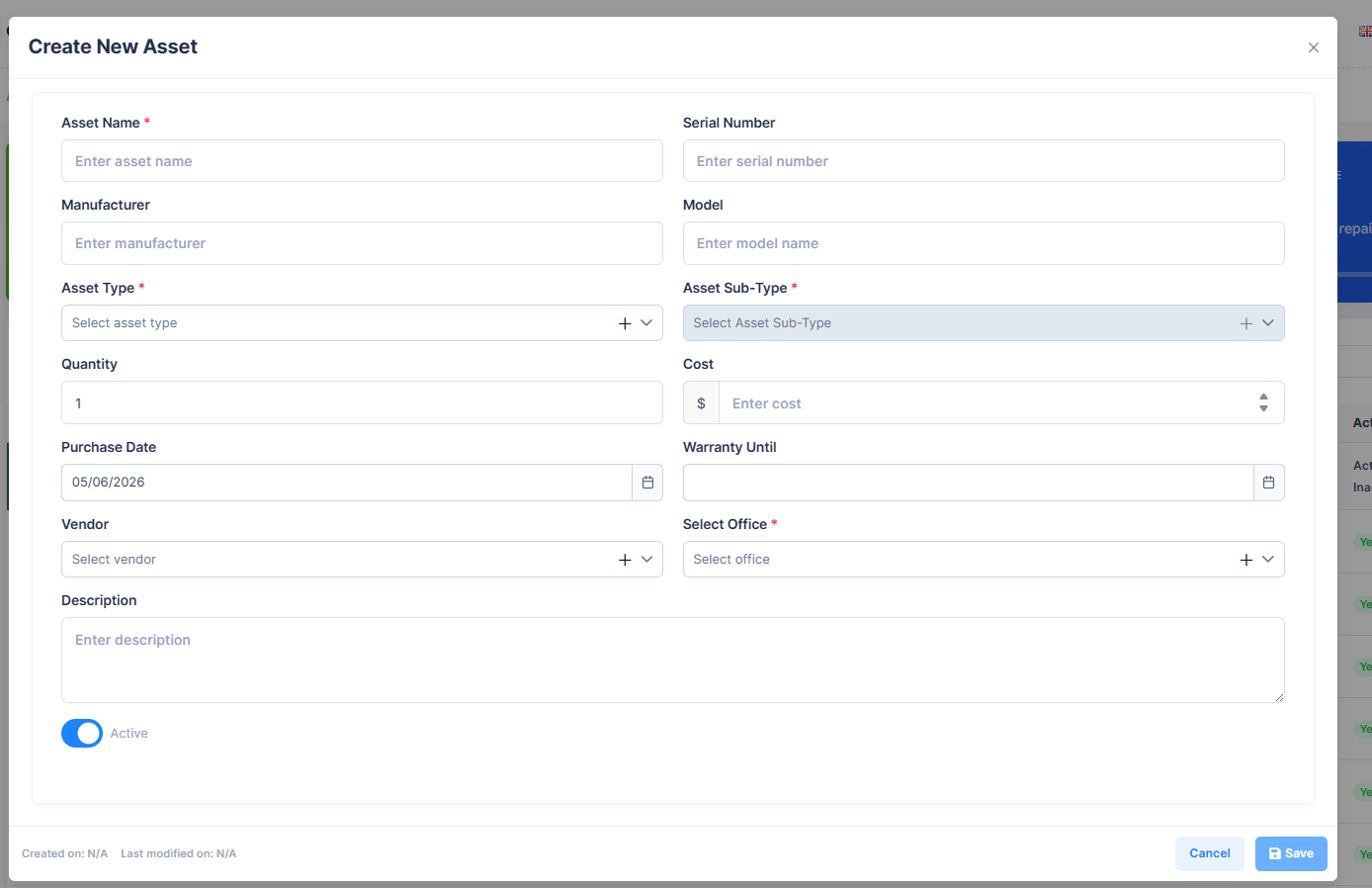
Option 1 — Create New Asset
- Navigate to
Asset Management → Assets. - Click the + button in the top-right corner of the list.
- Fill in the required fields and click Save.
| Field | Description |
|---|---|
| Asset Name | Name of the asset (required) |
| Serial Number | Manufacturer serial number |
| Manufacturer | Manufacturer name |
| Model | Model name |
| Asset Type | Asset category (required) |
| Asset Sub-Type | Asset sub-category (required) |
| Quantity | Number of units |
| Cost | Procurement cost |
| Purchase Date | Date the asset was purchased |
| Warranty Until | Warranty expiry date |
| Vendor | Linked vendor |
| Select Office | Office or location (required) |
| Description | Additional details |
| Active | Toggle to set the asset as active or inactive |
Option 2 — Assemble New Asset
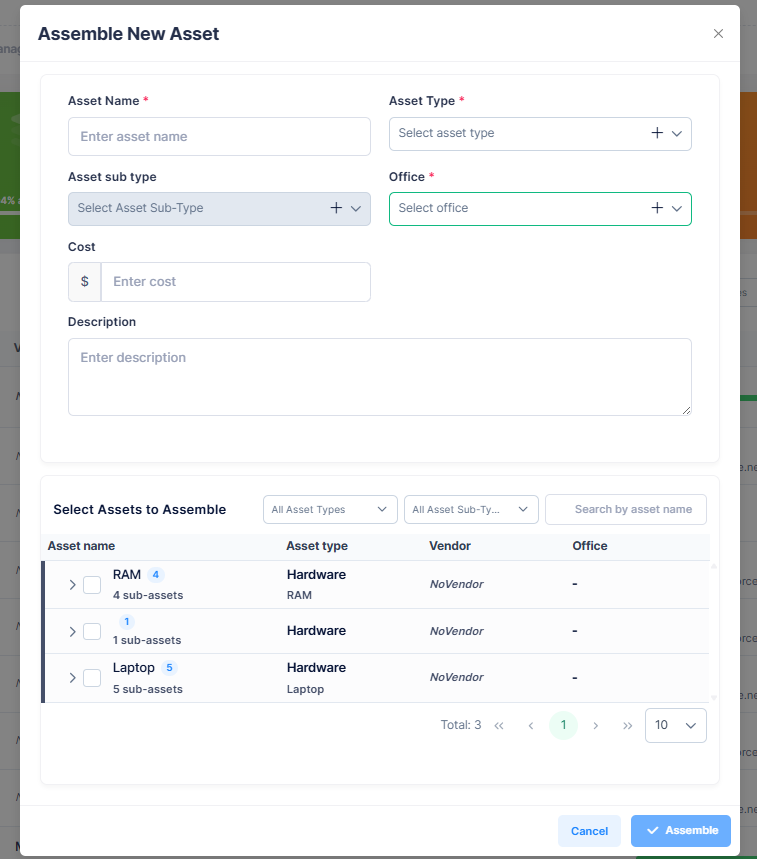
Assets can also be created by assembling existing individual components together.
- Click the Assemble icon button in the top-right corner of the list.
- Fill in the asset details and select the components to assemble.
- Click Assemble.
| Field | Description |
|---|---|
| Asset Name | Name of the assembled asset (required) |
| Asset Type | Asset category (required) |
| Asset Sub-Type | Asset sub-category |
| Office | Office or location (required) |
| Cost | Cost of the assembled asset |
| Description | Additional details |
| Select Assets to Assemble | Choose the individual components to include |
Components included in an assembled asset are marked as Consumed and cannot be used in other assets until reassembled.
Asset Detail Profile
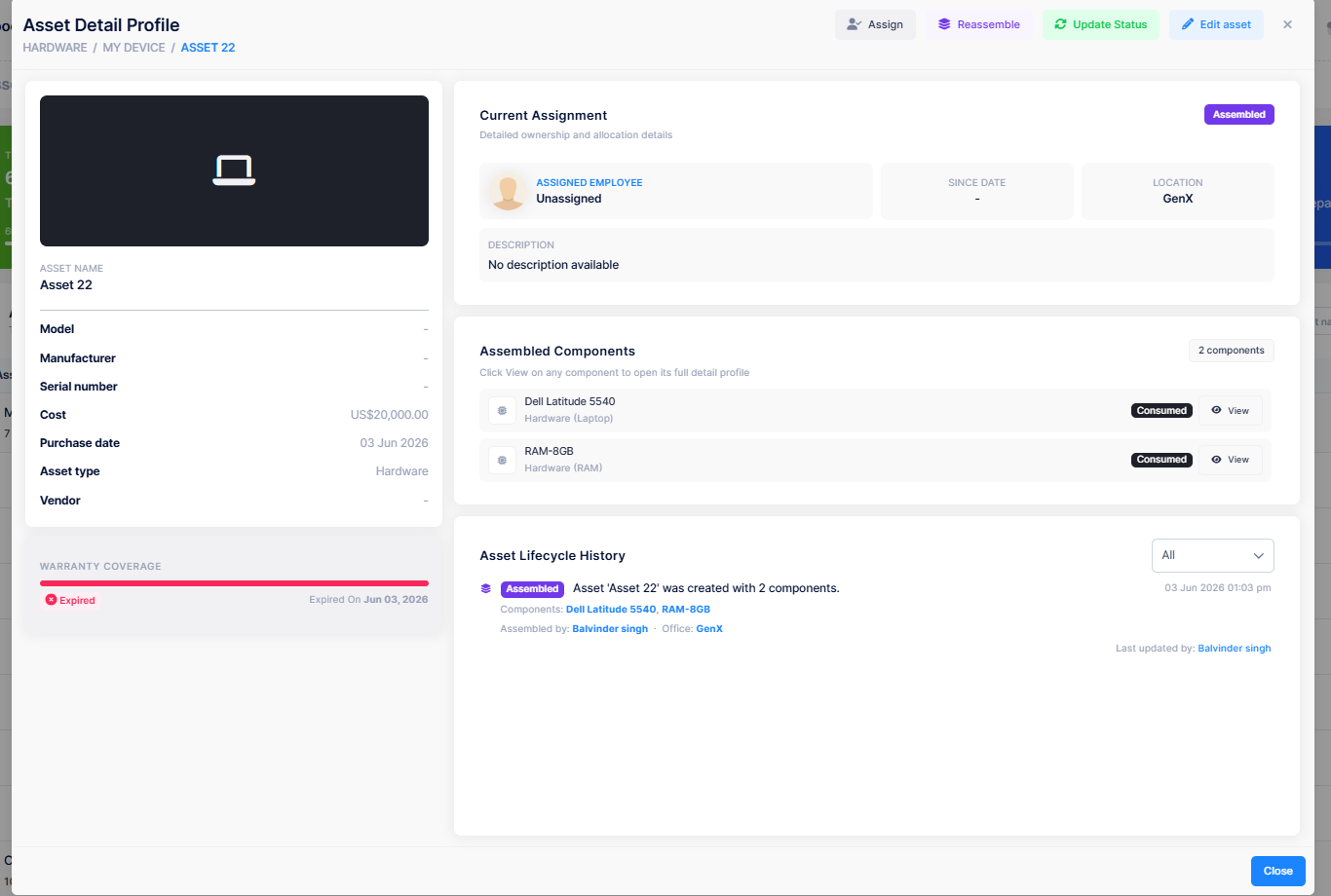
Clicking the view icon on any individual asset opens its Asset Detail Profile, which shows full asset information and lifecycle history.
Left Panel — Asset Info
| Field | Description |
|---|---|
| Asset Name | Name of the asset |
| Model | Hardware model |
| Manufacturer | Manufacturer name |
| Serial Number | Unique serial number |
| Cost | Procurement cost |
| Purchase Date | Date purchased |
| Asset Type | Asset category |
| Vendor | Linked vendor |
| Warranty Coverage | Active or expired with expiry date |
Right Panel — Current Assignment
Shows the current ownership details:
- Assigned Employee — Who the asset is assigned to (or Unassigned)
- Since Date — Date of the current assignment
- Location — Office or location
- Description — Any additional notes
The status badge (top-right) shows the current state.
Assembled Components
For assembled assets, this section lists all components with their type and Consumed status. Click View on any component to open its full detail profile.
Asset Lifecycle History
A chronological log of all events for this asset, including assembly, assignment, repair, and status changes. Each entry shows the event type, user involved, office, and timestamp. Use the All filter to narrow by event type.
Actions on Asset Detail Profile
| Action | Description |
|---|---|
| Assign | Allocate the asset to an employee |
| Reassemble | Modify the components that make up the asset |
| Update Status | Change the asset's current status (Repair, Damage, Lost, Theft, Return) |
| Edit Asset | Update asset details |
Best Practices
- Register assets immediately after procurement
- Always select the correct Asset Type and Sub-Type for accurate classification
- Set a Warranty Until date to track coverage
- Use Assemble when building assets from multiple components
- Deactivate assets that are no longer in use instead of deleting them