Asset Management Module
User Guide · Version 1.0
Navigation
Login → Asset Management
Overview
The Asset Management Module provides a centralized platform for tracking and managing company-owned assets throughout their entire lifecycle — from procurement to retirement.
Key Features
- Asset registration, assignment, and transfer
- Assemble assets from individual components (e.g. laptop + RAM)
- Reassemble assets by swapping or updating components
- Maintenance scheduling and tracking
- Vendor and procurement management
- Employee asset request and approval workflow
- Loss, theft, and damage incident tracking
- Complete audit history for every asset
Module Sections
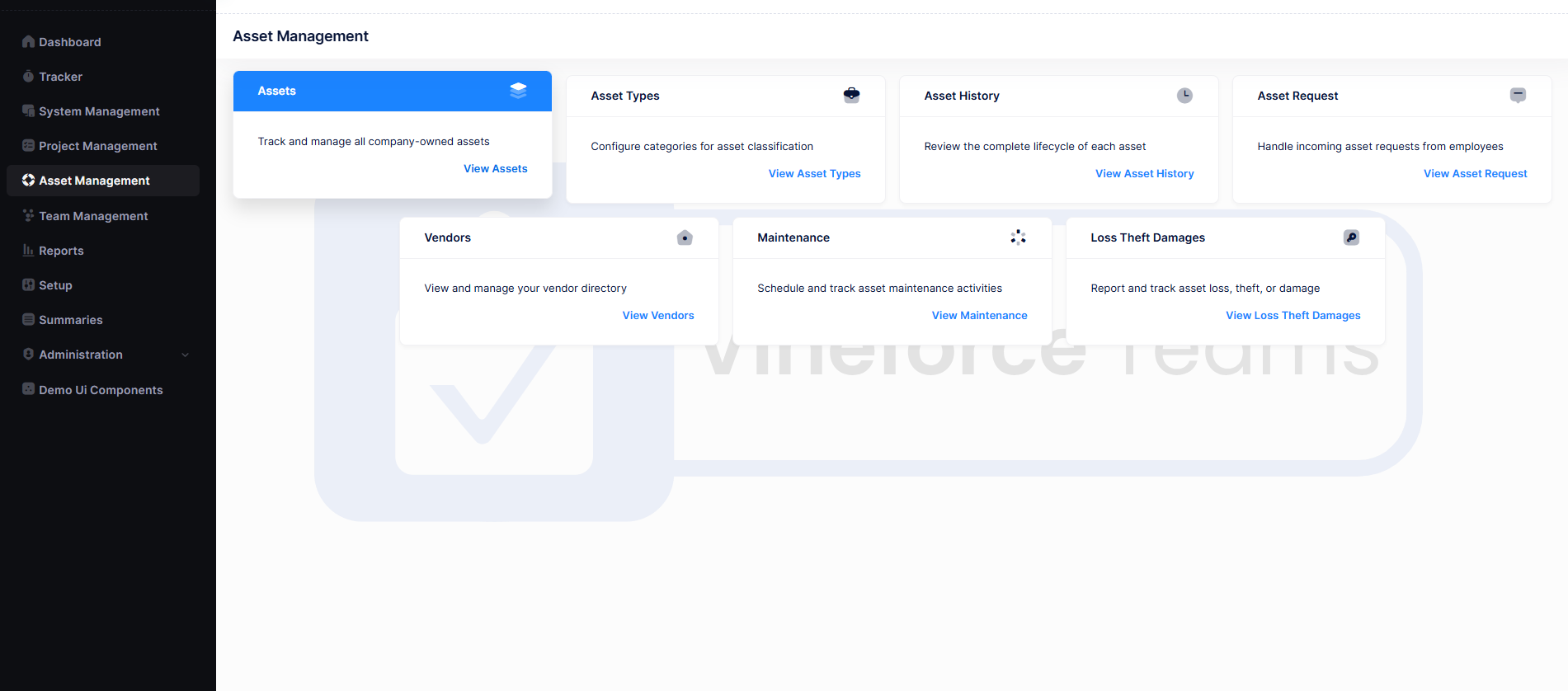
| Section | Purpose |
|---|---|
| Assets | Create, assign, transfer, and retire assets |
| Asset Types | Define categories (laptops, furniture, mobile devices, etc.) |
| Asset Requests | Submit and manage employee asset requests |
| Maintenance | Schedule and track preventive and corrective maintenance |
| Vendors | Manage suppliers, warranties, and service agreements |
| Loss, Theft & Damage | Record and monitor asset incidents |
| Asset History | Full audit trail of all asset activities |
Asset Assembly
Assets can be built by combining individual components (e.g. a laptop assembled with a specific RAM unit). Components are marked as Consumed once added to an asset, meaning they cannot be used elsewhere.
How to Assemble an Asset
- Open the Asset Detail Profile.
- Click Reassemble from the top action bar.
- Select the components to attach to this asset.
- Save — the asset status updates to Assembled and components are marked as Consumed.
How to Reassemble an Asset
- Open the Asset Detail Profile.
- Click Reassemble.
- Remove existing components and/or add new ones.
- Save — the change is logged in Asset Lifecycle History.
All assembly and reassembly actions are automatically recorded in Asset Lifecycle History with the assembler's name, office, and timestamp.
Asset Lifecycle
Procurement → Registration → Assembly → Assignment → Maintenance → Reassignment → Retirement
Getting Started
- Go to Asset Management from the main application menu.
- Set up Asset Types to define your asset categories.
- Register assets and configure vendors as needed.
- Assemble assets from components where applicable.
- Assign assets to employees or departments.
- Use the Maintenance and Requests modules to manage ongoing operations.