Tracker Settings
Overview
The Tracker Settings section is used to configure user activity tracking and screenshot behavior within the application.
Administrators can manage tracking frequency, idle detection, screenshot settings, and activity monitoring preferences from this section.
Navigation
Administration → Settings → Tracker
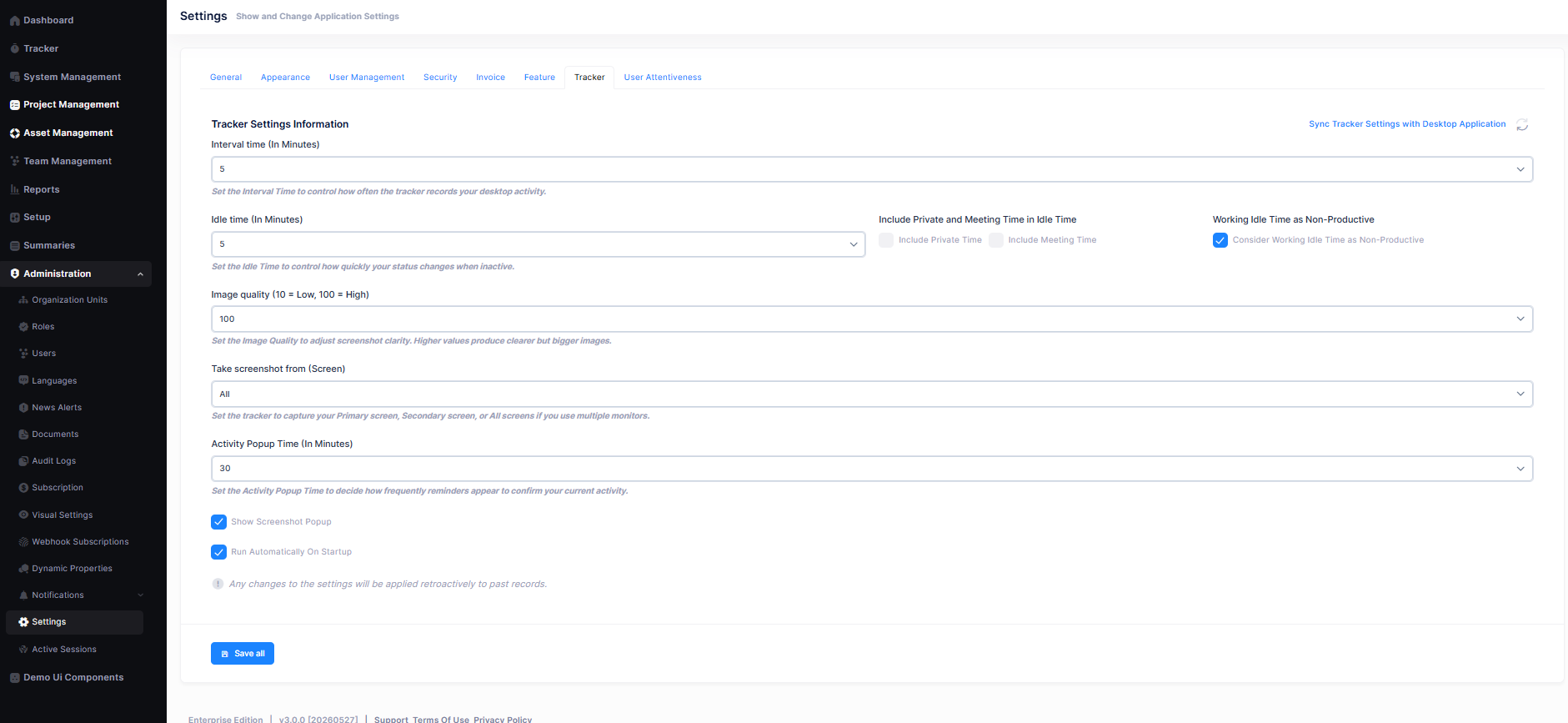
Tracker Settings
Interval Time (In Minutes)
Defines how frequently the tracker records desktop activity.
Purpose
- Controls tracking frequency
- Maintains regular activity monitoring
Idle Time (In Minutes)
Defines the inactivity duration after which a user is marked as idle.
Purpose
- Detects inactive users automatically
- Supports productivity tracking
Include Private and Meeting Time in Idle Time
Include Private Time
Includes private activity duration in idle time calculations.
Include Meeting Time
Includes meeting duration in idle time calculations.
Purpose
- Provides accurate productivity reports
- Improves activity monitoring calculations
Working Idle Time as Non-Productive
Treats idle duration during working hours as non-productive time.
Purpose
- Helps productivity analysis
- Improves performance monitoring
Image Quality (10 = Low, 100 = High)
Controls screenshot image quality captured by the tracker.
Purpose
- Higher quality provides clearer screenshots
- Lower quality reduces storage usage
Take Screenshot From (Screen)
Defines which display screen screenshots will be captured from.
Available Options
- Primary Screen
- Secondary Screen
- All Screens
Activity Popup Time (In Minutes)
Defines how frequently activity reminder popups appear.
Purpose
- Helps verify user activity regularly
- Maintains active session tracking
Show Screenshot Popup
Displays popup notifications during screenshot capture.
Purpose
- Keeps users informed about screenshot activity
- Improves transparency
Run Automatically On Startup
Automatically launches the tracker application during system startup.
Purpose
- Ensures tracking starts automatically
- Removes the need for manual launch
Sync Tracker Settings with Desktop Application
Synchronizes web tracker settings with the desktop tracker application.
Purpose
- Maintains consistent configuration
- Ensures the same settings across platforms
Save Settings
After updating the required configurations:
- Click Save All
- Updated tracker settings will be applied successfully