News Alerts
Overview
The News Alerts module allows administrators to create, manage, and control the visibility of important announcements, product updates, and system notifications within Vineforce Teams.
These in-app alerts help keep users informed about new features, improvements, and critical updates without relying on external communication channels.
Administration → News Alerts
What Are News Alerts?
News Alerts are in-app messages designed to share important information such as:
- Product updates and new features
- Platform announcements
- Service-related notifications
- Important system notices
Alerts are displayed within the application so users stay informed while working.
News Alerts Page
The News Alerts page displays a list of all created alerts along with their details. Each record shows:
- Title
- Active Date
- Expiry Date
- Status
- Description
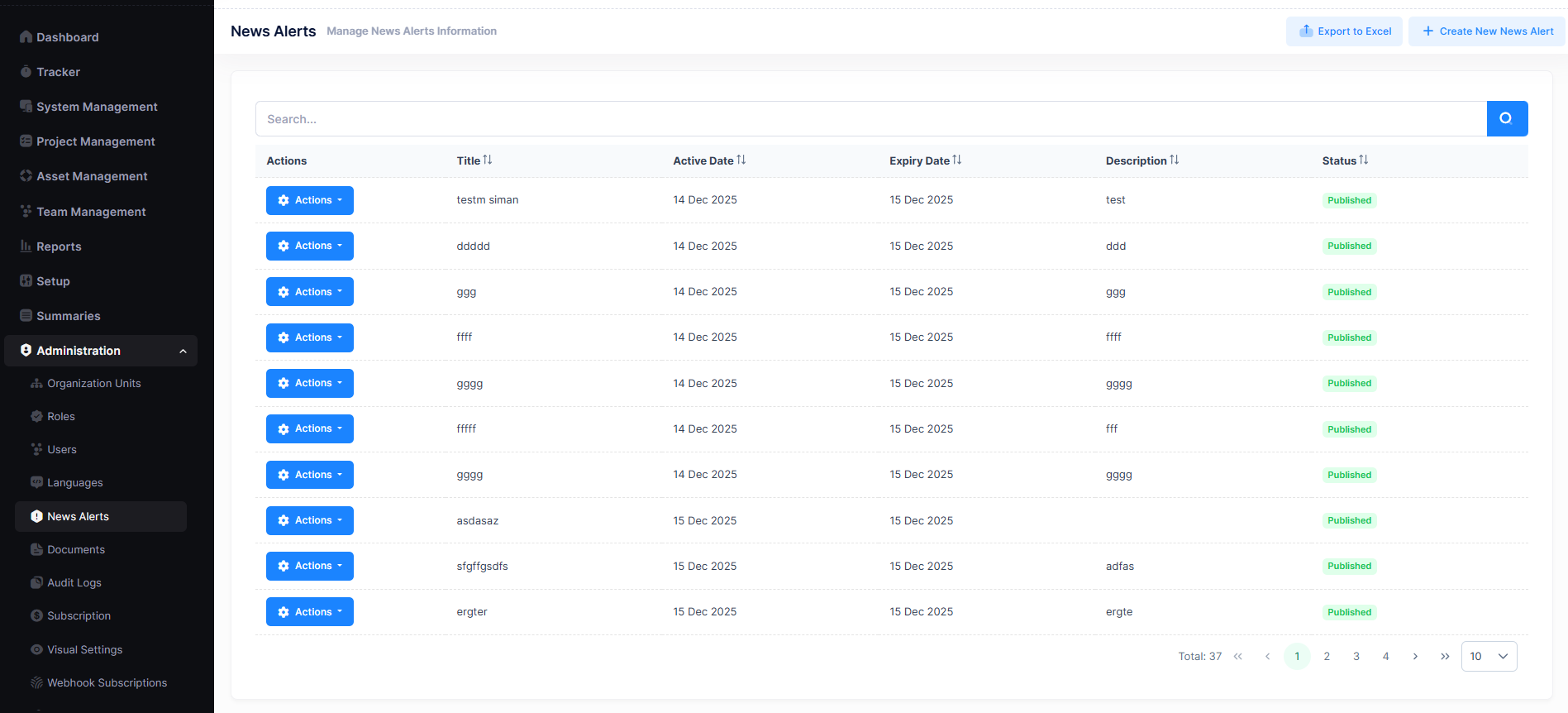
A search box is available to filter alerts, and pagination controls help navigate through multiple records.
Create a News Alert
- Navigate to
Administration → News Alerts - Click Create New News Alert
- Enter the required details:
- Title
- Active Date
- Expiry Date
- Status — either Draft or Published
- Description
- Click Save
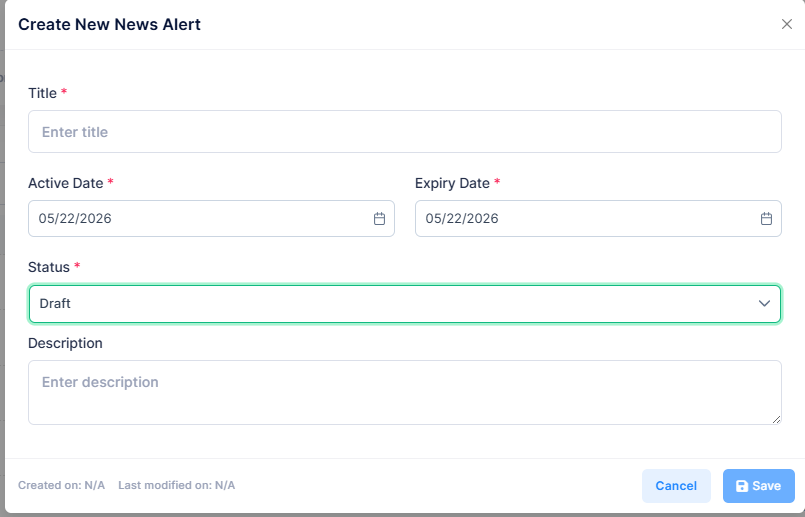
The newly created alert will appear in the News Alerts list.
Actions Menu
Each news alert record contains an Actions menu with the following options:
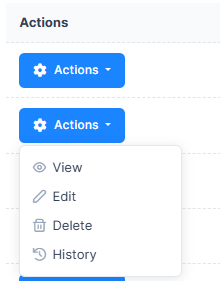
| Action | Description |
|---|---|
| View | Displays alert details in read-only mode |
| Edit | Opens the alert for editing |
| Delete | Removes the selected alert |
| History | Displays the change history of the alert |
Who Should Manage News Alerts
News Alerts should be managed by administrators or authorized users responsible for platform communication and configuration.
News Alerts are intended for informational purposes and do not affect tracking or productivity data.
Best Practices
Keep news alerts enabled for administrators so you never miss important updates or feature announcements.
- Avoid disabling critical alerts related to system changes
- Review alerts periodically to ensure relevance
- Inform users when important announcements are published
- Use alerts as a supplemental — not sole — communication channel
Related Topics
- Account Settings – Manage organization-level configurations
- Roles & Permissions – Control who can manage alerts
- App Settings – Configure application-wide behavior
Next Steps
After configuring News Alerts:
- Ensure alerts align with your organization's communication preferences
- Review other Administration settings for consistency
- Monitor user feedback on alert visibility and relevance